
T4K Integration with Observability Stack
Introduction
The Observability Stack is a pre-packaged distribution for monitoring, logging, and dashboarding and can be installed into any existing Kubernetes cluster. It includes many of the most popular open-source observability tools with Prometheus, Grafana, Promtail**,** and Loki. The observability stack provides a straightforward, maintainable solution for analyzing server traffic and identifying potential deployment problems.
T4K Installation with Observability using Trilio Operator
To install the operator with observability enabled, run the latest helm chart with the following parameter set.
helm repo add triliovault-operator https://charts.k8strilio.net/trilio-stable/k8s-triliovault-operator
helm install tvm triliovault-operator/k8s-triliovault-operator --set observability.enabled=trueObservability Stack Configurable Parameters
The following table lists the configuration parameters of the observability stack
observability.enabled
observability stack is enabled
false
observability.name
observability name for T4K integration
tvk-integration
observability.logging.loki.enabled
logging stack, loki is enabled
true
observability.logging.loki.fullnameOverride
name of the loki service
"loki"
observability.logging.loki.singleBinary.persistence.enabled
loki persistence storage enabled
true
observability.logging.loki.singleBinary.persistence.accessModes
loki persistence storage accessModes
ReadWriteOnce
observability.logging.loki.singleBinary.persistence.size
loki persistence storage size
10Gi
observability.logging.loki.loki.limits_config.reject_old_samples_max_age
loki config, maximum accepted sample age before rejecting
168h
observability.logging.loki.tableManager.retention_period
loki config, how far back tables will be kept before they are deleted. 0s disables deletion.
168h
observability.logging.promtail.enabled
logging stack, promtail is enabled
true
observability.logging.promtail.fullnameOverride
name of the promtail service
"promtail"
observability.logging.promtail.config.clients.url
loki url for promtail integration
observability.monitoring.prometheus.enabled
monitoring stack, prometheus is enabled
true
observability.monitoring.prometheus.fullnameOverride
name of the prometheus service
"prom"
observability.monitoring.prometheus.server.enabled
prometheus server is enabled
true
observability.monitoring.prometheus.server.fullnameOverride
name of prometheus server service
"prom-server"
observability.monitoring.prometheus.server.persistentVolume.enabled
prometheus server with persistent volume is enabled
false
observability.monitoring.prometheus.kube-state-metrics.enabled
prometheus kube state metrics is enabled
false
observability.monitoring.prometheus.prometheus-node-exporter.enabled
prometheus node exporter is enabled
false
observability.monitoring.prometheus.prometheus-pushgateway.enabled
prometheus push gateway is enabled
false
observability.monitoring.prometheus.alertmanager.enabled
prometheus alert manager is enabled
false
observability.visualization.grafana.enabled
visualization stack, grafana is enabled
true
observability.visualization.grafana.adminPassword
grafana password for admin user
"admin123"
observability.visualization.grafana.fullnameOverride
name of grafana service
"grafana"
observability.visualization.grafana.service.type
grafana service type
"ClusterIP"
Check the observability stack configuration by running the following command:
Enabling ServiceMonitor for T4K Metrics
The T4K exporter exposes Prometheus metrics on port 8080. You can enable a ServiceMonitor for automatic metrics discovery by Prometheus.
Enabling ServiceMonitor via Helm
Enable ServiceMonitor during T4K installation or upgrade:
Or upgrade an existing installation:
ServiceMonitor Configuration Parameters
installTVK.exporter.enabled
Enable/disable the metrics exporter
true
installTVK.exporter.serviceMonitor.enabled
Enable Prometheus ServiceMonitor for metrics collection
false
installTVK.exporter.resources.requests.cpu
CPU request for exporter pod
50m
installTVK.exporter.resources.requests.memory
Memory request for exporter pod
512Mi
When ServiceMonitor is enabled, the Helm chart creates:
A Service exposing the exporter metrics on port 8080
A ServiceMonitor resource that configures Prometheus to scrape metrics from the exporter
When exporter.serviceMonitor.enabled is set to false (default), the exporter pod includes Prometheus scrape annotations:
prometheus.io/scrape: "true"prometheus.io/path: /metricsprometheus.io/port: "8080"
If your Prometheus is configured to discover targets via pod annotations, metrics will be collected automatically without a ServiceMonitor.
Verifying Metrics Collection
After enabling the ServiceMonitor, verify that Prometheus is scraping T4K metrics:
Access Prometheus or Grafana UI
Query for T4K metrics:
You should see metrics with labels like
backup,backupplan,resource_namespace, etc.
Alertmanager Configuration
Alertmanager handles alerts sent by Prometheus server and manages routing, grouping, and notification. The observability stack includes Alertmanager as a sub-chart that can be enabled for T4K monitoring.
Enabling Alertmanager
To enable Alertmanager with the observability stack, set the following parameter during installation:
Alertmanager Configurable Parameters
The following table lists the Alertmanager-specific configuration parameters:
observability.monitoring.prometheus.alertmanager.enabled
Enable Alertmanager
false
observability.monitoring.prometheus.alertmanager.image.repository
Alertmanager container image repository
quay.io/prometheus/alertmanager
observability.monitoring.prometheus.alertmanager.configmapReload.image.repository
Alertmanager configmap reload image repository
quay.io/prometheus-operator/prometheus-config-reloader
observability.monitoring.prometheus.alertmanager.replicaCount
Number of Alertmanager replicas
1
observability.monitoring.prometheus.alertmanager.persistence.enabled
Enable persistent storage for Alertmanager
true
observability.monitoring.prometheus.alertmanager.persistence.size
Alertmanager persistent volume size
50Mi
observability.monitoring.prometheus.alertmanager.persistence.accessModes
Alertmanager persistent volume access modes
ReadWriteOnce
observability.monitoring.prometheus.alertmanager.service.type
Alertmanager service type
ClusterIP
observability.monitoring.prometheus.alertmanager.service.port
Alertmanager service port
9093
observability.monitoring.prometheus.alertmanager.ingress.enabled
Enable ingress for Alertmanager
false
Minimal Alertmanager Configuration
The following is a minimal Alertmanager configuration sample with basic routing:
Install with:
Example: Alertmanager with Slack Notifications
The following example demonstrates how to configure Alertmanager to send alerts to a Slack channel:
Install with the custom values file:
Example: Alertmanager with Email Notifications
The following example demonstrates how to configure Alertmanager to send alerts via email:
Example: Alertmanager with PagerDuty Integration
The following example demonstrates how to configure Alertmanager with PagerDuty for incident management:
Example: Alertmanager with Custom Templates
Alertmanager templates allow you to customize the format and content of notifications. The following example demonstrates how to create custom templates for T4K alerts:
Template Functions Reference
The following template functions are commonly used in Alertmanager templates:
toUpper
Converts string to uppercase
{{ .Status | toUpper }}
toLower
Converts string to lowercase
{{ .Labels.severity | toLower }}
title
Converts string to title case
{{ .Labels.alertname | title }}
join
Joins list elements with separator
{{ .Labels.Values | join ", " }}
safeHtml
Marks string as safe HTML
{{ .Annotations.description | safeHtml }}
reReplaceAll
Regex replace
{{ reReplaceAll "(.*):(.*)" "$1" .Labels.instance }}
Template Variables
Common variables available in templates:
.Status
Alert status ("firing" or "resolved")
.Alerts
List of all alerts in the group
.Alerts.Firing
List of currently firing alerts
.Alerts.Resolved
List of resolved alerts
.CommonLabels
Labels common to all alerts
.CommonAnnotations
Annotations common to all alerts
.ExternalURL
URL to Alertmanager
.GroupLabels
Labels used for grouping
Example: Using Kubernetes Secrets for Credentials
For production environments, it's recommended to store sensitive credentials (like Slack webhook URLs, SMTP passwords, or PagerDuty keys) in Kubernetes Secrets instead of hardcoding them in helm values.
Step 1: Create Kubernetes Secret
First, create a secret containing your sensitive credentials:
Or using a YAML manifest:
Apply the secret:
Step 2: Configure Alertmanager to Use Secret
Configure Alertmanager to mount the secret and reference credentials from environment variables or files:
Secret File Reference Options
Alertmanager supports _file suffix for many credential fields, which reads the value from a file:
slack_api_url
slack_api_url_file
Global Slack webhook URL
api_url
api_url_file
Per-receiver Slack webhook URL
smtp_auth_password
smtp_auth_password_file
SMTP password
smtp_auth_identity
smtp_auth_identity_file
SMTP identity
smtp_auth_secret
smtp_auth_secret_file
SMTP secret
service_key
service_key_file
PagerDuty service key
routing_key
routing_key_file
PagerDuty routing key
token
token_file
Opsgenie/VictorOps token
url
url_file
Webhook URL
Example: Complete Setup with External Secrets Operator
For organizations using External Secrets Operator (ESO) to sync secrets from external secret managers (AWS Secrets Manager, HashiCorp Vault, etc.):
Apply the ExternalSecret:
The External Secrets Operator will automatically create and sync the alertmanager-secrets Kubernetes Secret from your external secret manager.
Security Best Practices:
Never commit secrets to version control
Use
_filereferences instead of inline credentialsRotate secrets regularly
Use RBAC to restrict access to secrets
Consider using sealed-secrets or external-secrets-operator for GitOps workflows
Example: Complete Observability Stack with Alertmanager
The following is a comprehensive example enabling the full observability stack with Alertmanager, custom alerting rules, and persistent storage:
Install with:
Verifying Alertmanager Installation
After installation, verify that Alertmanager is running:
Access the Alertmanager UI:
Then open your browser to http://localhost:9093 to view the Alertmanager UI.
T4K Metrics Reference
TrilioVault for Kubernetes (T4K) exports Prometheus metrics through the k8s-triliovault-exporter component. These metrics can be used for monitoring, alerting, and dashboarding.
Metric Value Conventions
For status-based metrics (*_info metrics), the numeric value indicates the status:
Available / Completed
1
Resource is healthy/successful
Failed / Error
-1
Resource has failed
InProgress
0
Operation is in progress
Empty/Unknown
-2
Status not yet determined
Available Metrics
Backup Metrics
trilio_backup_info
Backup status and metadata
backup, backupplan, resource_namespace, status, target, backup_type, start_ts, completion_ts, size, cluster, kind, hook, backupscope, applicationtype
trilio_backup_storage
Backup size in bytes
backup, backupplan, resource_namespace, status, target, backup_type, cluster, kind
trilio_backup_status_percentage
Backup progress (0-100)
backup, backupplan, resource_namespace, status, target, backup_type, cluster, kind
trilio_backup_completed_duration
Backup duration in minutes (only for completed backups)
backup, backupplan, resource_namespace, status, target, backup_type, cluster, kind
trilio_backup_metadata_info
Detailed backup object metadata
backup, backupplan, resource_namespace, status, objecttype, objectname, backupscope, applicationtype, apiversion, apigroup, object_resource
Restore Metrics
trilio_restore_info
Restore status and metadata
restore, backup, backupplan, resource_namespace, status, target, size, start_ts, completion_ts, cluster, kind
trilio_restore_status_percentage
Restore progress (0-100)
restore, backup, resource_namespace, status, target, cluster, kind
trilio_restore_completed_duration
Restore duration in minutes (only for completed restores)
restore, backup, resource_namespace, status, target, cluster, kind
Target Metrics
trilio_target_info
Target availability status (1=available, 0=unavailable)
target, resource_namespace, status, vendor, vendorType, browsing, eventTarget, size, threshold_capacity, creation_ts, cluster
trilio_target_storage
Storage used by target in bytes
target, resource_namespace, status, vendor, vendorType, threshold_capacity, creation_ts, cluster
BackupPlan Metrics
trilio_backupplan_info
BackupPlan status and summary
backupplan, resource_namespace, status, target, protected, backup_count, lastprotected, backupscope, applicationtype, creation_ts, cluster, kind
trilio_backupplan_crstatus
BackupPlan continuous restore status
backupplan, continuousrestoreinstance, continuousrestore_enabled, continuousrestoreplan, consistentset_count, cr_status, cluster, kind
Continuous Restore Metrics
trilio_continuousrestoreplan_info
ContinuousRestorePlan status
continuousrestoreplan, continuousrestorepolicy, target, consistentsetcount, sourcebackupplan, sourceinstanceinfo, status, creation_ts, cluster, kind
trilio_consistentset_info
ConsistentSet status and details
consistentset, consistentsetscope, continuousrestoreplan, sourcebackupplan, sourceinstanceinfo, backupName, backupNamespace, backupStatus, backupSize, status, size, cluster, kind
trilio_consistentset_status_percentage
ConsistentSet progress (0-100)
consistentset, consistentsetscope, continuousrestoreplan, sourcebackupplan, sourceinstanceinfo, backupName, status, cluster, kind
trilio_consistentset_completed_duration
ConsistentSet duration in minutes
consistentset, consistentsetscope, continuousrestoreplan, sourcebackupplan, sourceinstanceinfo, backupName, status, cluster, kind
Example PromQL Queries
Viewing Alert Rules in Grafana
Once alert rules are configured, you can view and manage them directly from the Grafana UI. Navigate to Alerting > Alert rules to see all configured rules, their current state, and firing alerts.

The Alert rules page shows:
Data source-managed rules: Alert rules defined in Prometheus configuration (e.g.,
/etc/config/alerting_rules.yml)State: Current state of each alert (Firing, Normal, Pending, Recovering)
Health: Health status of the alert rule
Summary: Brief description of what the alert monitors
You can filter alerts by data source, dashboard, state, rule type, health status, and contact point.
View Logs From T4K UI
Login to T4K UI with preferred authentication
Select "Launch Event Viewer" on any required service or application
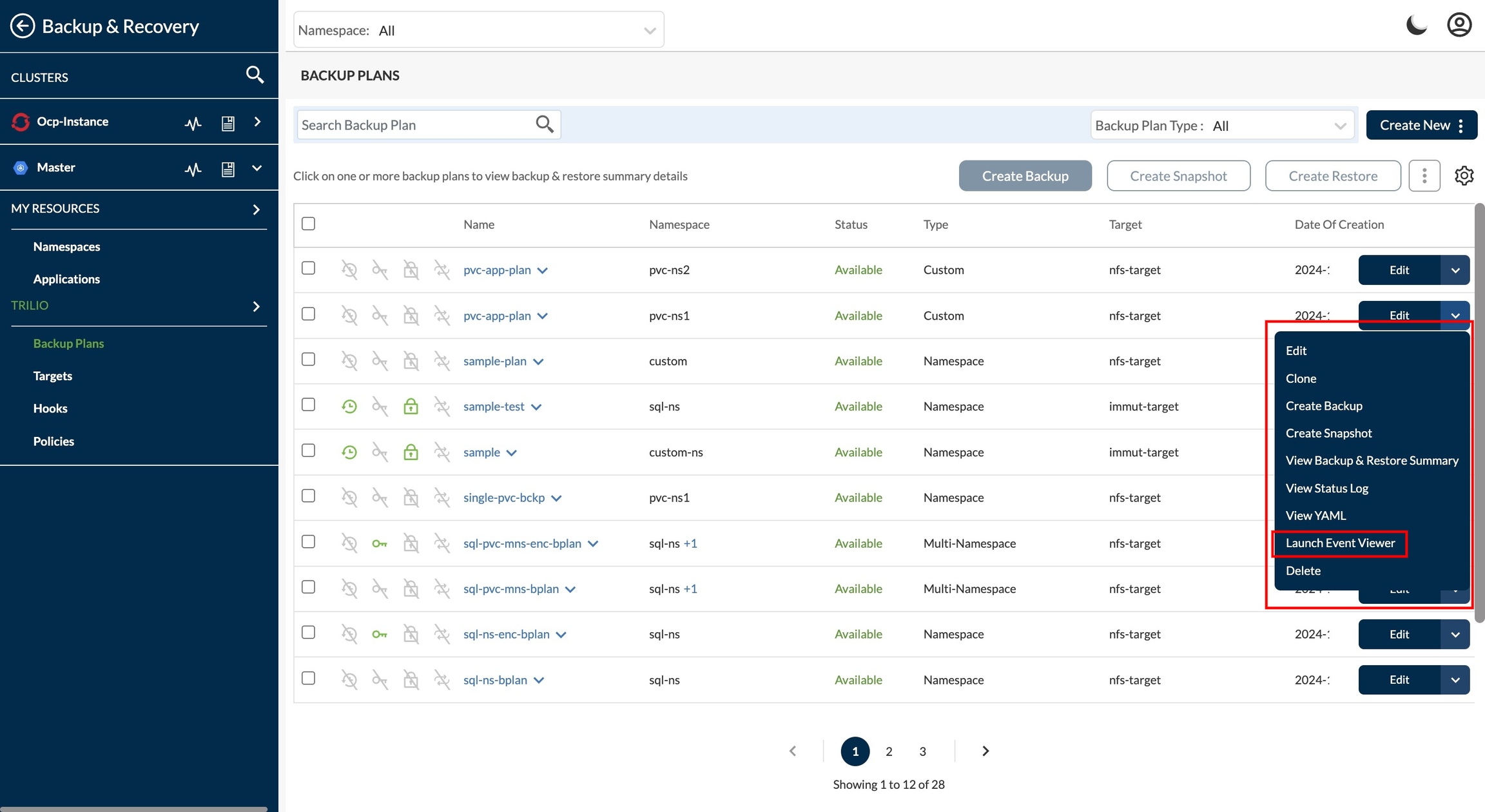
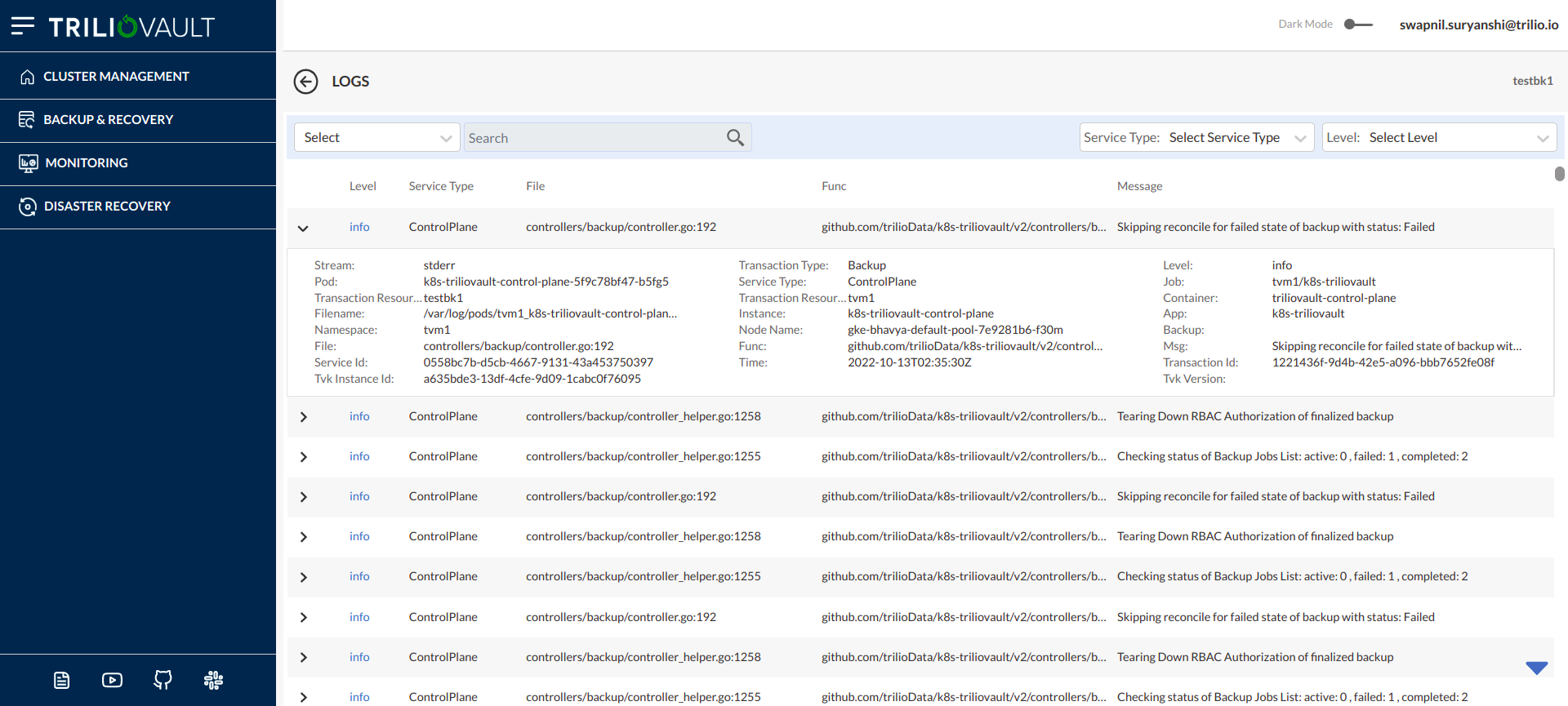
On click on "Launch Event Viewer" option, user will be redirected to Logs visibility page.
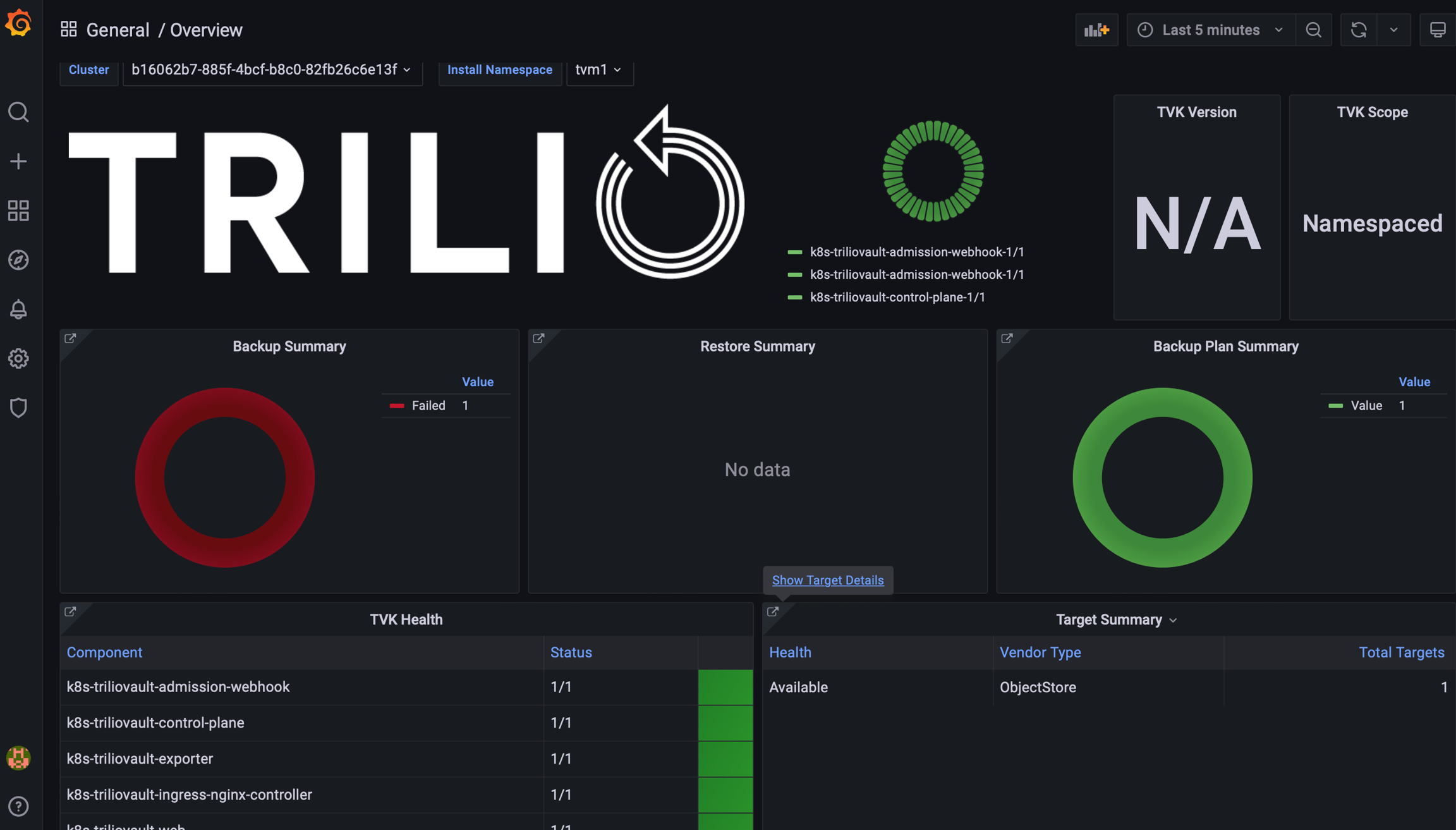
Accessing Grafana Dashboards
if a custom path is configured then:
Grafana Endpoint : http://<T4K_IP>/<custom-path>/grafana
Additional Monitoring Components
Kube-State-Metrics
Kube-state-metrics generates metrics about the state of Kubernetes objects. Enable it to get comprehensive cluster metrics:
Node Exporter
Node Exporter exposes hardware and OS metrics from the host machines:
Pushgateway
Pushgateway allows ephemeral and batch jobs to expose metrics to Prometheus:
Last updated