> For the complete documentation index, see [llms.txt](https://docs.trilio.io/openstack/llms.txt). Markdown versions of documentation pages are available by appending `.md` to page URLs; this page is available as [Markdown](https://docs.trilio.io/openstack/t4o-5.x/admin-guide/disaster-recovery/example-runbook-for-disaster-recovery-using-nfs-1.md).
# Example runbook for Disaster Recovery using S3
This runbook will demonstrate how to set up Disaster Recovery with Trilio for a given scenario.
The chosen scenario is following an actively used Trilio customer environment.
## Scenario
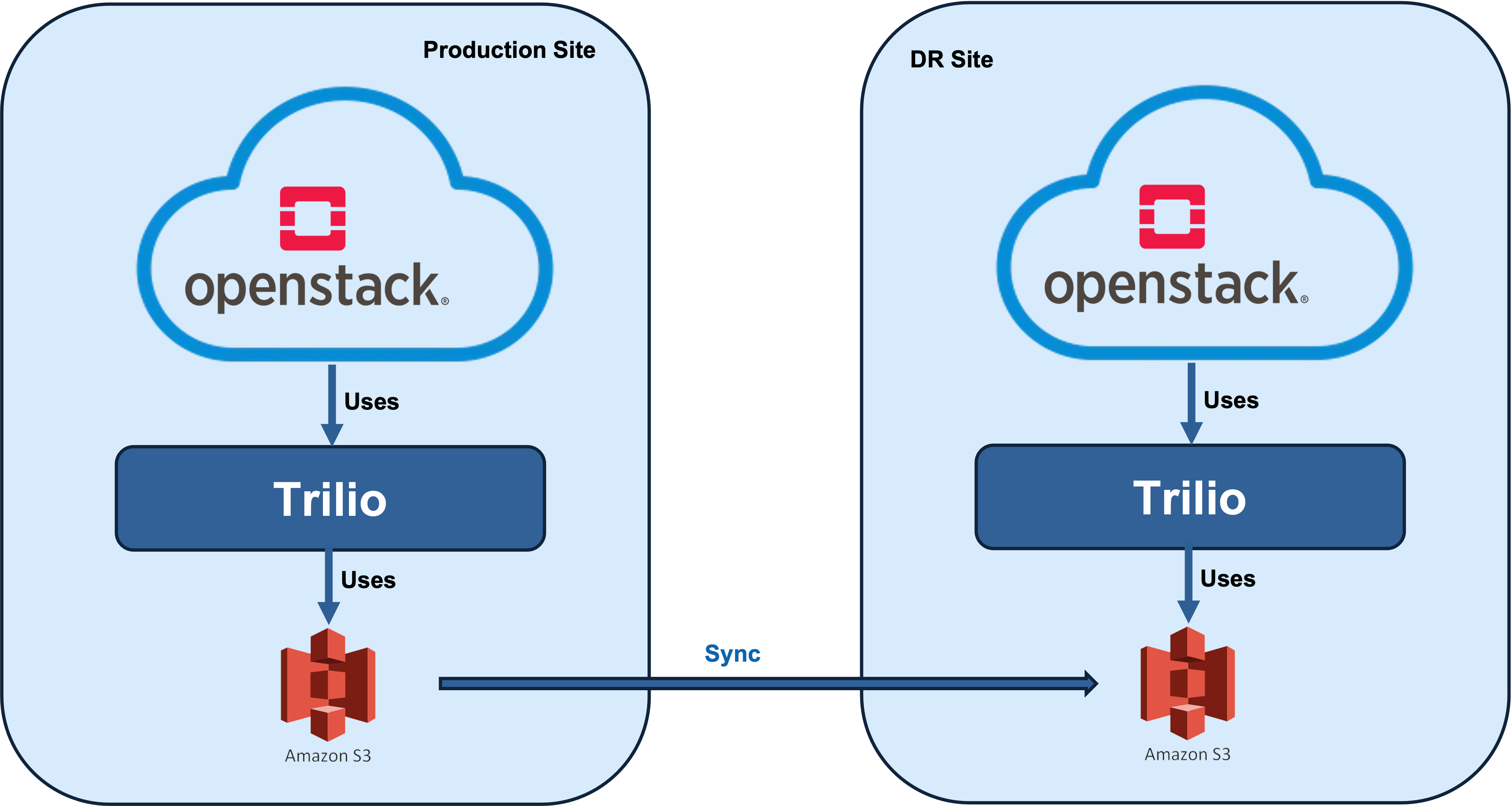
Two OpenStack clouds are available: "OpenStack Cloud at Production Site" and "OpenStack Cloud at DR Site." Both clouds have Trilio installed as an OpenStack service to provide backup functionality for OpenStack workloads. Each OpenStack cloud is configured to use its unique S3 bucket for storing backup images. The contents of the S3 buckets are synchronized using the aws sync command. The syncing process is set up independently from Trilio.
$ aws s3 sync s3://production-s3-bucket/workload_ac9cae9b-5e1b-4899-930c-6aa0600a2105/ s3://dr-site-s3-bucket-bucket/workload_ac9cae9b-5e1b-4899-930c-6aa0600a2105/
+----------------------------------+----------+
| ID | Name |
+----------------------------------+----------+
| 01fca51462a44bfa821130dce9baac1a | project1 |
| 33b4db1099ff4a65a4c1f69a14f932ee | project2 |
| 9139e694eb984a4a979b5ae8feb955af | project3 |
+----------------------------------+----------+
```
#### Trustee Role
Ensure the that new project has the correct trustee role assigned.
```
# openstack role assignment list --project --project-domain --role
+----------------------------------+----------------------------------+-------+----------------------------------+--------+-----------+
| Role | User | Group | Project | Domain | Inherited |
+----------------------------------+----------------------------------+-------+----------------------------------+--------+-----------+
| 9fe2ff9ee4384b1894a90878d3e92bab | 72e65c264a694272928f5d84b73fe9ce | | 8e16700ae3614da4ba80a4e57d60cdb9 | | False |
| 9fe2ff9ee4384b1894a90878d3e92bab | d5fbd79f4e834f51bfec08be6d3b2ff2 | | 8e16700ae3614da4ba80a4e57d60cdb9 | | False |
| 9fe2ff9ee4384b1894a90878d3e92bab | f5b1d071816742fba6287d2c8ffcd6c4 | | 8e16700ae3614da4ba80a4e57d60cdb9 | | False |
+----------------------------------+----------------------------------+-------+----------------------------------+--------+-----------+
```
#### Reassign the workload to the target project
Reassign the workload to the target project. Please refer to [reassign ](/openstack/t4o-5.x/admin-guide/workload-import-and-migration.md#reassigning-workloads)workloads documentation for additional options.
```
# workloadmgr workload-reassign-workloads --new_tenant_id {target_project_id} --user_id {target_user_id} --workload_ids {workload_id} --migrate_cloud True
+-----------+--------------------------------------+----------------------------------+----------------------------------+
| Name | ID | Project ID | User ID |
+-----------+--------------------------------------+----------------------------------+----------------------------------+
| project1 | 904e72f7-27bb-4235-9b31-13a636eb9c95 | 4f2a91274ce9491481db795dcb10b04f | 3e05cac47338425d827193ba374749cc |
+-----------+--------------------------------------+----------------------------------+----------------------------------+
```
#### Verify the workload is available at the desired target\_project
After the workload has been assigned to the new project, please verify the workload is managed by the Target Trilio and is assigned to the right project and user.
```
# workloadmgr workload-show ac9cae9b-5e1b-4899-930c-6aa0600a2105
+-------------------+------------------------------------------------------------------------------------------------------+
| Property | Value |
+-------------------+------------------------------------------------------------------------------------------------------+
| availability_zone | nova |
| created_at | 2019-04-18T02:19:39.000000 |
| description | Test Linux VMs |
| error_msg | None |
| id | ac9cae9b-5e1b-4899-930c-6aa0600a2105 |
| instances | [{"id": "38b620f1-24ae-41d7-b0ab-85ffc2d7958b", "name": "Test-Linux-1"}, {"id": |
| | "3fd869b2-16bd-4423-b389-18d19d37c8e0", "name": "Test-Linux-2"}] |
| interval | None |
| jobschedule | True |
| name | Test Linux |
| project_id | 2fc4e2180c2745629753305591aeb93b |
| scheduler_trust | None |
| status | available |
| storage_usage | {"usage": 60555264, "full": {"usage": 44695552, "snap_count": 1}, "incremental": {"usage": 15859712, |
| | "snap_count": 13}} |
| updated_at | 2019-11-15T02:32:43.000000 |
| user_id | 72e65c264a694272928f5d84b73fe9ce |
| workload_type_id | f82ce76f-17fe-438b-aa37-7a023058e50d |
+-------------------+------------------------------------------------------------------------------------------------------+
```
### Restore the workload
The workload can be restored using Horizon following the procedure described [here](/openstack/t4o-5.x/user-guide/restores.md#using-horizon-5).
This runbook will use CLI for demonstration. The CLI must be executed with the project credentials.
#### Get list of workload snapshots
Get the list of workload snapshots and identify the snapshot you want to restore
```
# workloadmgr snapshot-list --workload_id ac9cae9b-5e1b-4899-930c-6aa0600a2105 --all True
+----------------------------+--------------+--------------------------------------+--------------------------------------+---------------+-----------+-----------+
| Created At | Name | ID | Workload ID | Snapshot Type | Status | Host |
+----------------------------+--------------+--------------------------------------+--------------------------------------+---------------+-----------+-----------+
| 2019-11-02T02:30:02.000000 | jobscheduler | f5b8c3fd-c289-487d-9d50-fe27a6561d78 | ac9cae9b-5e1b-4899-930c-6aa0600a2105 | full | available | Upstream2 |
| 2019-11-03T02:30:02.000000 | jobscheduler | 7e39e544-537d-4417-853d-11463e7396f9 | ac9cae9b-5e1b-4899-930c-6aa0600a2105 | incremental | available | Upstream2 |
| 2019-11-04T02:30:02.000000 | jobscheduler | 0c086f3f-fa5d-425f-b07e-a1adcdcafea9 | ac9cae9b-5e1b-4899-930c-6aa0600a2105 | incremental | available | Upstream2 |
+----------------------------+--------------+--------------------------------------+--------------------------------------+---------------+-----------+-----------+
```
*Get Snapshot Details with network details for the desired snapshot*
```
# workloadmgr snapshot-show --output networks 7e39e544-537d-4417-853d-11463e7396f9
+-------------------+--------------------------------------+
| Snapshot property | Value |
+-------------------+--------------------------------------+
| description | None |
| host | Upstream2 |
| id | 7e39e544-537d-4417-853d-11463e7396f9 |
| name | jobscheduler |
| progress_percent | 100 |
| restore_size | 44040192 Bytes or Approx (42.0MB) |
| restores_info | |
| size | 1310720 Bytes or Approx (1.2MB) |
| snapshot_type | incremental |
| status | available |
| time_taken | 154 Seconds |
| uploaded_size | 1310720 |
| workload_id | ac9cae9b-5e1b-4899-930c-6aa0600a2105 |
+-------------------+--------------------------------------+
+----------------+---------------------------------------------------------------------------------------------------------------------+
| Instances | Value |
+----------------+---------------------------------------------------------------------------------------------------------------------+
| Status | available |
| Security Group | [{u'name': u'Test', u'security_group_type': u'neutron'}, {u'name': u'default', u'security_group_type': u'neutron'}] |
| Flavor | {u'ephemeral': u'0', u'vcpus': u'1', u'disk': u'1', u'ram': u'512'} |
| Name | Test-Linux-1 |
| ID | 38b620f1-24ae-41d7-b0ab-85ffc2d7958b |
| | |
| Status | available |
| Security Group | [{u'name': u'Test', u'security_group_type': u'neutron'}, {u'name': u'default', u'security_group_type': u'neutron'}] |
| Flavor | {u'ephemeral': u'0', u'vcpus': u'1', u'disk': u'1', u'ram': u'512'} |
| Name | Test-Linux-2 |
| ID | 3fd869b2-16bd-4423-b389-18d19d37c8e0 |
| | |
+----------------+---------------------------------------------------------------------------------------------------------------------+
+-------------+----------------------------------------------------------------------------------------------------------------------------------------------+
| Networks | Value |
+-------------+----------------------------------------------------------------------------------------------------------------------------------------------+
| ip_address | 172.20.20.20 |
| vm_id | 38b620f1-24ae-41d7-b0ab-85ffc2d7958b |
| network | {u'subnet': {u'ip_version': 4, u'cidr': u'172.20.20.0/24', u'gateway_ip': u'172.20.20.1', u'id': u'3a756a89-d979-4cda-a7f3-dacad8594e44',
u'name': u'Trilio Test'}, u'cidr': None, u'id': u'5f0e5d34-569d-42c9-97c2-df944f3924b1', u'name': u'Trilio_Test_Internal', u'network_type': u'neutron'} |
| mac_address | fa:16:3e:74:58:bb |
| | |
| ip_address | 172.20.20.13 |
| vm_id | 3fd869b2-16bd-4423-b389-18d19d37c8e0 |
| network | {u'subnet': {u'ip_version': 4, u'cidr': u'172.20.20.0/24', u'gateway_ip': u'172.20.20.1', u'id': u'3a756a89-d979-4cda-a7f3-dacad8594e44',
u'name': u'Trilio Test'}, u'cidr': None, u'id': u'5f0e5d34-569d-42c9-97c2-df944f3924b1', u'name': u'Trilio_Test_Internal', u'network_type': u'neutron'} |
| mac_address | fa:16:3e:6b:46:ae |
+-------------+----------------------------------------------------------------------------------------------------------------------------------------------+
```
*Get Snapshot Details with disk details for the desired Snapshot*
```
[root@upstreamcontroller ~(keystone_admin)]# workloadmgr snapshot-show --output disks 7e39e544-537d-4417-853d-11463e7396f9
+-------------------+--------------------------------------+
| Snapshot property | Value |
+-------------------+--------------------------------------+
| description | None |
| host | Upstream2 |
| id | 7e39e544-537d-4417-853d-11463e7396f9 |
| name | jobscheduler |
| progress_percent | 100 |
| restore_size | 44040192 Bytes or Approx (42.0MB) |
| restores_info | |
| size | 1310720 Bytes or Approx (1.2MB) |
| snapshot_type | incremental |
| status | available |
| time_taken | 154 Seconds |
| uploaded_size | 1310720 |
| workload_id | ac9cae9b-5e1b-4899-930c-6aa0600a2105 |
+-------------------+--------------------------------------+
+----------------+---------------------------------------------------------------------------------------------------------------------+
| Instances | Value |
+----------------+---------------------------------------------------------------------------------------------------------------------+
| Status | available |
| Security Group | [{u'name': u'Test', u'security_group_type': u'neutron'}, {u'name': u'default', u'security_group_type': u'neutron'}] |
| Flavor | {u'ephemeral': u'0', u'vcpus': u'1', u'disk': u'1', u'ram': u'512'} |
| Name | Test-Linux-1 |
| ID | 38b620f1-24ae-41d7-b0ab-85ffc2d7958b |
| | |
| Status | available |
| Security Group | [{u'name': u'Test', u'security_group_type': u'neutron'}, {u'name': u'default', u'security_group_type': u'neutron'}] |
| Flavor | {u'ephemeral': u'0', u'vcpus': u'1', u'disk': u'1', u'ram': u'512'} |
| Name | Test-Linux-2 |
| ID | 3fd869b2-16bd-4423-b389-18d19d37c8e0 |
| | |
+----------------+---------------------------------------------------------------------------------------------------------------------+
+-------------------+--------------------------------------------------+
| Vdisks | Value |
+-------------------+--------------------------------------------------+
| volume_mountpoint | /dev/vda |
| restore_size | 22020096 |
| resource_id | ebc2fdd0-3c4d-4548-b92d-0e16734b5d9a |
| volume_name | 0027b140-a427-46cb-9ccf-7895c7624493 |
| volume_type | None |
| label | None |
| volume_size | 1 |
| volume_id | 0027b140-a427-46cb-9ccf-7895c7624493 |
| availability_zone | nova |
| vm_id | 38b620f1-24ae-41d7-b0ab-85ffc2d7958b |
| metadata | {u'readonly': u'False', u'attached_mode': u'rw'} |
| | |
| volume_mountpoint | /dev/vda |
| restore_size | 22020096 |
| resource_id | 8007ed89-6a86-447e-badb-e49f1e92f57a |
| volume_name | 2a7f9e78-7778-4452-af5b-8e2fa43853bd |
| volume_type | None |
| label | None |
| volume_size | 1 |
| volume_id | 2a7f9e78-7778-4452-af5b-8e2fa43853bd |
| availability_zone | nova |
| vm_id | 3fd869b2-16bd-4423-b389-18d19d37c8e0 |
| metadata | {u'readonly': u'False', u'attached_mode': u'rw'} |
| | |
+-------------------+--------------------------------------------------+
```
#### Create the json payload to restore a snapshot
The selective restore is using a restore.json file for the CLI command. The restore.json includes all the necessary mappings to the current project.
```
{
u'description':u'',
u'oneclickrestore':False,
u'restore_type':u'selective',
u'type':u'openstack',
u'name':u''
u'openstack':{
u'instances':[
{
u'name':u'',
u'availability_zone':u'',
u'nics':[ #####Leave empty for network topology restore
],
u'vdisks':[
{
u'id':u'',
u'new_volume_type':u'',
u'availability_zone':u''
}
],
u'flavor':{
u'ram':,
u'ephemeral':,
u'vcpus':<# vCPUs>,
u'swap':u'',
u'disk':,
u'id':u''
},
u'include':,
u'id':u''
} #####Repeat for each instance in the snapshot
],
u'restore_topology':,
u'networks_mapping':{
u'networks':[ #####Leave empty for network topology restore
]
}
}
}
```
#### Run the selective restore
The user who has the backup trustee role can restore the snapshot to DR cloud
```
# workloadmgr snapshot-selective-restore --filename restore.json {snapshot id}
```
#### Verify the restore
To verify the success of the restore from a Trilio perspective the restore status is checked.
```
[root@upstreamcontroller ~(keystone_admin)]# workloadmgr restore-list --snapshot_id 5928554d-a882-4881-9a5c-90e834c071af
+----------------------------+------------------+--------------------------------------+--------------------------------------+----------+-----------+
| Created At | Name | ID | Snapshot ID | Size | Status |
+----------------------------+------------------+--------------------------------------+--------------------------------------+----------+-----------+
| 2019-09-24T12:44:38.000000 | OneClick Restore | 5b4216d0-4bed-460f-8501-1589e7b45e01 | 5928554d-a882-4881-9a5c-90e834c071af | 41126400 | available |
+----------------------------+------------------+--------------------------------------+--------------------------------------+----------+-----------+
[root@upstreamcontroller ~(keystone_admin)]# workloadmgr restore-show 5b4216d0-4bed-460f-8501-1589e7b45e01
+------------------+------------------------------------------------------------------------------------------------------+
| Property | Value |
+------------------+------------------------------------------------------------------------------------------------------+
| created_at | 2019-09-24T12:44:38.000000 |
| description | - |
| error_msg | None |
| finished_at | 2019-09-24T12:46:07.000000 |
| host | Upstream2 |
| id | 5b4216d0-4bed-460f-8501-1589e7b45e01 |
| instances | [{"status": "available", "id": "b8506f04-1b99-4ca8-839b-6f5d2c20d9aa", "name": "temp", "metadata": |
| | {"instance_id": "c014a938-903d-43db-bfbb-ea4998ff1a0f", "production": "1", "config_drive": ""}}] |
| name | OneClick Restore |
| progress_msg | Restore from snapshot is complete |
| progress_percent | 100 |
| project_id | 8e16700ae3614da4ba80a4e57d60cdb9 |
| restore_options | {"description": "-", "oneclickrestore": true, "restore_type": "oneclick", "openstack": {"instances": |
| | [{"availability_zone": "US-West", "id": "c014a938-903d-43db-bfbb-ea4998ff1a0f", "name": "temp"}]}, |
| | "type": "openstack", "name": "OneClick Restore"} |
| restore_type | restore |
| size | 41126400 |
| snapshot_id | 5928554d-a882-4881-9a5c-90e834c071af |
| status | available |
| time_taken | 89 |
| updated_at | 2019-09-24T12:44:38.000000 |
| uploaded_size | 41126400 |
| user_id | d5fbd79f4e834f51bfec08be6d3b2ff2 |
| warning_msg | None |
| workload_id | 02b1aca2-c51a-454b-8c0f-99966314165e |
+------------------+------------------------------------------------------------------------------------------------------+
```
## Recovering all production workloads at DR site
The high-level process for disaster recovery in the production cloud includes the following steps:
1. Ensure that Trilio is configured to use the S3 bucket at the DR site
2. Replicate the production S3 bucket to the DR site S3 bucket
3. Reassign workloads to domains/projects at the DR site
#### Sync DR site S3 bucket with Production S3 bucket
```
aws s3 sync s3://production-s3-bucket/ s3://dr-site-s3-bucket-bucket/
```
### Ensure backup images integrity
Trilio backups are qcow2 files and can be inspected using `qemu-img` tool. On one of the datamover containers at DR site, cd to s3 fuse mount and navigate to one of the workloads snapshots directory and perform the following operation on a VM disk.
```
#qemu-img info --backing-chain bd57ec9b-c4ac-4a37-a4fd-5c9aa002c778
image: bd57ec9b-c4ac-4a37-a4fd-5c9aa002c778
file format: qcow2
virtual size: 1.0G (1073741824 bytes)
disk size: 516K
cluster_size: 65536
backing file: /var/triliovault-mounts/workload_ac9cae9b-5e1b-4899-930c-6aa0600a2105/snapshot_1415095d-c047-400b-8b05-c88e57011263/vm_id_38b620f1-24ae-41d7-b0ab-85ffc2d7958b/vm_res_id_d4ab3431-5ce3-4a8f-a90b-07606e2ffa33_vda/7c39eb6a-6e42-418e-8690-b6368ecaa7bb
Format specific information:
compat: 1.1
lazy refcounts: false
refcount bits: 16
corrupt: false
```
### Reassign the workloads to DR cloud
Trilio workloads have clear ownership. When a workload is moved to a different cloud it is necessary to change the ownership. The ownership can only be changed by OpenStack administrators.
#### List all orphaned workloads on the S3 fuse mount
An orphaned workload is one on the S3 bucket that is not assigned to any existing project in the cloud.
```
# workloadmgr workload-get-orphaned-workloads-list --migrate_cloud True
+------------+--------------------------------------+----------------------------------+----------------------------------+
| Name | ID | Project ID | User ID |
+------------+--------------------------------------+----------------------------------+----------------------------------+
| Workload_1 | 6639525d-736a-40c5-8133-5caaddaaa8e9 | 4224d3acfd394cc08228cc8072861a35 | 329880dedb4cd357579a3279835f392 |
| Workload_2 | 904e72f7-27bb-4235-9b31-13a636eb9c95 | 637a9ce3fd0d404cabf1a776696c9c04 | 329880dedb4cd357579a3279835f392 |
+------------+--------------------------------------+----------------------------------+----------------------------------+
```
#### List available projects in a domain
The orphaned workloads need to be assigned to their new projects. The following provides the list of all available projects in a given domain.
```
# openstack project list --domain
+----------------------------------+----------+
| ID | Name |
+----------------------------------+----------+
| 01fca51462a44bfa821130dce9baac1a | project1 |
| 33b4db1099ff4a65a4c1f69a14f932ee | project2 |
| 9139e694eb984a4a979b5ae8feb955af | project3 |
+----------------------------------+----------+
```
#### Make sure users in the project has the backup trustee role assigned.
```
# openstack role assignment list --project --project-domain --role
+----------------------------------+----------------------------------+-------+----------------------------------+--------+-----------+
| Role | User | Group | Project | Domain | Inherited |
+----------------------------------+----------------------------------+-------+----------------------------------+--------+-----------+
| 9fe2ff9ee4384b1894a90878d3e92bab | 72e65c264a694272928f5d84b73fe9ce | | 8e16700ae3614da4ba80a4e57d60cdb9 | | False |
| 9fe2ff9ee4384b1894a90878d3e92bab | d5fbd79f4e834f51bfec08be6d3b2ff2 | | 8e16700ae3614da4ba80a4e57d60cdb9 | | False |
| 9fe2ff9ee4384b1894a90878d3e92bab | f5b1d071816742fba6287d2c8ffcd6c4 | | 8e16700ae3614da4ba80a4e57d60cdb9 | | False |
+----------------------------------+----------------------------------+-------+----------------------------------+--------+-----------+
```
#### Reassign the workload to the target project
Reassign the workload to the target project.
```
# workloadmgr workload-reassign-workloads --new_tenant_id {target_project_id} --user_id {target_user_id} --workload_ids {workload_id} --migrate_cloud True
+-----------+--------------------------------------+----------------------------------+----------------------------------+
| Name | ID | Project ID | User ID |
+-----------+--------------------------------------+----------------------------------+----------------------------------+
| project1 | 904e72f7-27bb-4235-9b31-13a636eb9c95 | 4f2a91274ce9491481db795dcb10b04f | 3e05cac47338425d827193ba374749cc |
+-----------+--------------------------------------+----------------------------------+----------------------------------+
```
#### Verify the workload is available in the project
After the workload has been assigned to the new project verify the workload is assigned to the right project and user.
```
# workloadmgr workload-show ac9cae9b-5e1b-4899-930c-6aa0600a2105
+-------------------+------------------------------------------------------------------------------------------------------+
| Property | Value |
+-------------------+------------------------------------------------------------------------------------------------------+
| availability_zone | nova |
| created_at | 2019-04-18T02:19:39.000000 |
| description | Test Linux VMs |
| error_msg | None |
| id | ac9cae9b-5e1b-4899-930c-6aa0600a2105 |
| instances | [{"id": "38b620f1-24ae-41d7-b0ab-85ffc2d7958b", "name": "Test-Linux-1"}, {"id": |
| | "3fd869b2-16bd-4423-b389-18d19d37c8e0", "name": "Test-Linux-2"}] |
| interval | None |
| jobschedule | True |
| name | Test Linux |
| project_id | 2fc4e2180c2745629753305591aeb93b |
| scheduler_trust | None |
| status | available |
| storage_usage | {"usage": 60555264, "full": {"usage": 44695552, "snap_count": 1}, "incremental": {"usage": 15859712, |
| | "snap_count": 13}} |
| updated_at | 2019-11-15T02:32:43.000000 |
| user_id | 72e65c264a694272928f5d84b73fe9ce |
| workload_type_id | f82ce76f-17fe-438b-aa37-7a023058e50d |
+-------------------+------------------------------------------------------------------------------------------------------+
```
### Restore the workload
The reassigned workload can be restored using Horizon following the procedure described [here](/openstack/t4o-5.x/user-guide/restores.md#using-horizon-5).
We will use CLI in this runbook.
#### Get the list of snapshots of a workload
*List all Snapshots of the workload*
```
# workloadmgr snapshot-list --workload_id ac9cae9b-5e1b-4899-930c-6aa0600a2105 --all True
+----------------------------+--------------+--------------------------------------+--------------------------------------+---------------+-----------+-----------+
| Created At | Name | ID | Workload ID | Snapshot Type | Status | Host |
+----------------------------+--------------+--------------------------------------+--------------------------------------+---------------+-----------+-----------+
| 2019-11-02T02:30:02.000000 | jobscheduler | f5b8c3fd-c289-487d-9d50-fe27a6561d78 | ac9cae9b-5e1b-4899-930c-6aa0600a2105 | full | available | Upstream2 |
| 2019-11-03T02:30:02.000000 | jobscheduler | 7e39e544-537d-4417-853d-11463e7396f9 | ac9cae9b-5e1b-4899-930c-6aa0600a2105 | incremental | available | Upstream2 |
| 2019-11-04T02:30:02.000000 | jobscheduler | 0c086f3f-fa5d-425f-b07e-a1adcdcafea9 | ac9cae9b-5e1b-4899-930c-6aa0600a2105 | incremental | available | Upstream2 |
+----------------------------+--------------+--------------------------------------+--------------------------------------+---------------+-----------+-----------+
```
*Get Snapshot Details with network details for the desired snapshot*
```
# workloadmgr snapshot-show --output networks 7e39e544-537d-4417-853d-11463e7396f9
+-------------------+--------------------------------------+
| Snapshot property | Value |
+-------------------+--------------------------------------+
| description | None |
| host | Upstream2 |
| id | 7e39e544-537d-4417-853d-11463e7396f9 |
| name | jobscheduler |
| progress_percent | 100 |
| restore_size | 44040192 Bytes or Approx (42.0MB) |
| restores_info | |
| size | 1310720 Bytes or Approx (1.2MB) |
| snapshot_type | incremental |
| status | available |
| time_taken | 154 Seconds |
| uploaded_size | 1310720 |
| workload_id | ac9cae9b-5e1b-4899-930c-6aa0600a2105 |
+-------------------+--------------------------------------+
+----------------+---------------------------------------------------------------------------------------------------------------------+
| Instances | Value |
+----------------+---------------------------------------------------------------------------------------------------------------------+
| Status | available |
| Security Group | [{u'name': u'Test', u'security_group_type': u'neutron'}, {u'name': u'default', u'security_group_type': u'neutron'}] |
| Flavor | {u'ephemeral': u'0', u'vcpus': u'1', u'disk': u'1', u'ram': u'512'} |
| Name | Test-Linux-1 |
| ID | 38b620f1-24ae-41d7-b0ab-85ffc2d7958b |
| | |
| Status | available |
| Security Group | [{u'name': u'Test', u'security_group_type': u'neutron'}, {u'name': u'default', u'security_group_type': u'neutron'}] |
| Flavor | {u'ephemeral': u'0', u'vcpus': u'1', u'disk': u'1', u'ram': u'512'} |
| Name | Test-Linux-2 |
| ID | 3fd869b2-16bd-4423-b389-18d19d37c8e0 |
| | |
+----------------+---------------------------------------------------------------------------------------------------------------------+
+-------------+----------------------------------------------------------------------------------------------------------------------------------------------+
| Networks | Value |
+-------------+----------------------------------------------------------------------------------------------------------------------------------------------+
| ip_address | 172.20.20.20 |
| vm_id | 38b620f1-24ae-41d7-b0ab-85ffc2d7958b |
| network | {u'subnet': {u'ip_version': 4, u'cidr': u'172.20.20.0/24', u'gateway_ip': u'172.20.20.1', u'id': u'3a756a89-d979-4cda-a7f3-dacad8594e44',
u'name': u'Trilio Test'}, u'cidr': None, u'id': u'5f0e5d34-569d-42c9-97c2-df944f3924b1', u'name': u'Trilio_Test_Internal', u'network_type': u'neutron'} |
| mac_address | fa:16:3e:74:58:bb |
| | |
| ip_address | 172.20.20.13 |
| vm_id | 3fd869b2-16bd-4423-b389-18d19d37c8e0 |
| network | {u'subnet': {u'ip_version': 4, u'cidr': u'172.20.20.0/24', u'gateway_ip': u'172.20.20.1', u'id': u'3a756a89-d979-4cda-a7f3-dacad8594e44',
u'name': u'Trilio Test'}, u'cidr': None, u'id': u'5f0e5d34-569d-42c9-97c2-df944f3924b1', u'name': u'Trilio_Test_Internal', u'network_type': u'neutron'} |
| mac_address | fa:16:3e:6b:46:ae |
+-------------+----------------------------------------------------------------------------------------------------------------------------------------------+
```
*Get Snapshot Details with disk details for the desired Snapshot*
```
[root@upstreamcontroller ~(keystone_admin)]# workloadmgr snapshot-show --output disks 7e39e544-537d-4417-853d-11463e7396f9
+-------------------+--------------------------------------+
| Snapshot property | Value |
+-------------------+--------------------------------------+
| description | None |
| host | Upstream2 |
| id | 7e39e544-537d-4417-853d-11463e7396f9 |
| name | jobscheduler |
| progress_percent | 100 |
| restore_size | 44040192 Bytes or Approx (42.0MB) |
| restores_info | |
| size | 1310720 Bytes or Approx (1.2MB) |
| snapshot_type | incremental |
| status | available |
| time_taken | 154 Seconds |
| uploaded_size | 1310720 |
| workload_id | ac9cae9b-5e1b-4899-930c-6aa0600a2105 |
+-------------------+--------------------------------------+
+----------------+---------------------------------------------------------------------------------------------------------------------+
| Instances | Value |
+----------------+---------------------------------------------------------------------------------------------------------------------+
| Status | available |
| Security Group | [{u'name': u'Test', u'security_group_type': u'neutron'}, {u'name': u'default', u'security_group_type': u'neutron'}] |
| Flavor | {u'ephemeral': u'0', u'vcpus': u'1', u'disk': u'1', u'ram': u'512'} |
| Name | Test-Linux-1 |
| ID | 38b620f1-24ae-41d7-b0ab-85ffc2d7958b |
| | |
| Status | available |
| Security Group | [{u'name': u'Test', u'security_group_type': u'neutron'}, {u'name': u'default', u'security_group_type': u'neutron'}] |
| Flavor | {u'ephemeral': u'0', u'vcpus': u'1', u'disk': u'1', u'ram': u'512'} |
| Name | Test-Linux-2 |
| ID | 3fd869b2-16bd-4423-b389-18d19d37c8e0 |
| | |
+----------------+---------------------------------------------------------------------------------------------------------------------+
+-------------------+--------------------------------------------------+
| Vdisks | Value |
+-------------------+--------------------------------------------------+
| volume_mountpoint | /dev/vda |
| restore_size | 22020096 |
| resource_id | ebc2fdd0-3c4d-4548-b92d-0e16734b5d9a |
| volume_name | 0027b140-a427-46cb-9ccf-7895c7624493 |
| volume_type | None |
| label | None |
| volume_size | 1 |
| volume_id | 0027b140-a427-46cb-9ccf-7895c7624493 |
| availability_zone | nova |
| vm_id | 38b620f1-24ae-41d7-b0ab-85ffc2d7958b |
| metadata | {u'readonly': u'False', u'attached_mode': u'rw'} |
| | |
| volume_mountpoint | /dev/vda |
| restore_size | 22020096 |
| resource_id | 8007ed89-6a86-447e-badb-e49f1e92f57a |
| volume_name | 2a7f9e78-7778-4452-af5b-8e2fa43853bd |
| volume_type | None |
| label | None |
| volume_size | 1 |
| volume_id | 2a7f9e78-7778-4452-af5b-8e2fa43853bd |
| availability_zone | nova |
| vm_id | 3fd869b2-16bd-4423-b389-18d19d37c8e0 |
| metadata | {u'readonly': u'False', u'attached_mode': u'rw'} |
| | |
+-------------------+--------------------------------------------------+
```
#### Prepare the selective restore by creating the restore.json file
The selective restore is using a restore.json file for the CLI command. The `restore.json` file captures all the details regarding restore operation include mapping of VMs to available zones, mapping volumes types to existing volume types and network mappings.
```
{
u'description':u'',
u'oneclickrestore':False,
u'restore_type':u'selective',
u'type':u'openstack',
u'name':u''
u'openstack':{
u'instances':[
{
u'name':u'',
u'availability_zone':u'',
u'nics':[ #####Leave empty for network topology restore
],
u'vdisks':[
{
u'id':u'',
u'new_volume_type':u'',
u'availability_zone':u''
}
],
u'flavor':{
u'ram':,
u'ephemeral':,
u'vcpus':<# vCPUs>,
u'swap':u'',
u'disk':,
u'id':u''
},
u'include':,
u'id':u''
} #####Repeat for each instance in the snapshot
],
u'restore_topology':,
u'networks_mapping':{
u'networks':[ #####Leave empty for network topology restore
]
}
}
}
```
#### Run the selective restore
To do the actual restore use the following command:
```
# workloadmgr snapshot-selective-restore --filename restore.json {snapshot id}
```
#### Verify the restore
To verify the success of the restore from a Trilio perspective the restore status is checked.
```
[root@upstreamcontroller ~(keystone_admin)]# workloadmgr restore-list --snapshot_id 5928554d-a882-4881-9a5c-90e834c071af
+----------------------------+------------------+--------------------------------------+--------------------------------------+----------+-----------+
| Created At | Name | ID | Snapshot ID | Size | Status |
+----------------------------+------------------+--------------------------------------+--------------------------------------+----------+-----------+
| 2019-09-24T12:44:38.000000 | OneClick Restore | 5b4216d0-4bed-460f-8501-1589e7b45e01 | 5928554d-a882-4881-9a5c-90e834c071af | 41126400 | available |
+----------------------------+------------------+--------------------------------------+--------------------------------------+----------+-----------+
[root@upstreamcontroller ~(keystone_admin)]# workloadmgr restore-show 5b4216d0-4bed-460f-8501-1589e7b45e01
+------------------+------------------------------------------------------------------------------------------------------+
| Property | Value |
+------------------+------------------------------------------------------------------------------------------------------+
| created_at | 2019-09-24T12:44:38.000000 |
| description | - |
| error_msg | None |
| finished_at | 2019-09-24T12:46:07.000000 |
| host | Upstream2 |
| id | 5b4216d0-4bed-460f-8501-1589e7b45e01 |
| instances | [{"status": "available", "id": "b8506f04-1b99-4ca8-839b-6f5d2c20d9aa", "name": "temp", "metadata": |
| | {"instance_id": "c014a938-903d-43db-bfbb-ea4998ff1a0f", "production": "1", "config_drive": ""}}] |
| name | OneClick Restore |
| progress_msg | Restore from snapshot is complete |
| progress_percent | 100 |
| project_id | 8e16700ae3614da4ba80a4e57d60cdb9 |
| restore_options | {"description": "-", "oneclickrestore": true, "restore_type": "oneclick", "openstack": {"instances": |
| | [{"availability_zone": "US-West", "id": "c014a938-903d-43db-bfbb-ea4998ff1a0f", "name": "temp"}]}, |
| | "type": "openstack", "name": "OneClick Restore"} |
| restore_type | restore |
| size | 41126400 |
| snapshot_id | 5928554d-a882-4881-9a5c-90e834c071af |
| status | available |
| time_taken | 89 |
| updated_at | 2019-09-24T12:44:38.000000 |
| uploaded_size | 41126400 |
| user_id | d5fbd79f4e834f51bfec08be6d3b2ff2 |
| warning_msg | None |
| workload_id | 02b1aca2-c51a-454b-8c0f-99966314165e |
+------------------+------------------------------------------------------------------------------------------------------+
```