> For the complete documentation index, see [llms.txt](https://docs.trilio.io/openstack/llms.txt). Markdown versions of documentation pages are available by appending `.md` to page URLs; this page is available as [Markdown](https://docs.trilio.io/openstack/admin-guide/grafana-monitoring/import-grafana-dashboard.md).
# Procedure to Import a Grafana Dashboard
## 1] Procedure to Access the Grafana Dashboard for Trilio
The following command provides the URL for the Grafana dashboard:
```bash
oc -n openshift-user-workload-monitoring get routes -n openshift-user-workload-monitoring
```
The above command shows the Grafana URL. Log in to Grafana using this URL.
Use the credentials mentioned in the `grafana-secret-creds.yaml` file to log in to the Grafana UI.
Alternatively, you can fetch the credentials using the following commands:
```bash
kubectl get secret -n openshift-user-workload-monitoring credentials -o "jsonpath={.data.GF_SECURITY_ADMIN_USER}" | base64 --decode
kubectl get secret -n openshift-user-workload-monitoring credentials -o "jsonpath={.data.GF_SECURITY_ADMIN_PASSWORD}" | base64 --decode
```
***
### 1.1] Import Grafana Dashboard File
Download or navigate to the Grafana dashboard JSON file using the following location:
```bash
cd triliovault-cfg-scripts/redhat-director-scripts/monitoring-openshift/grafana/
```
Grafana dashboard JSON file:
```
vi TrilioGrafanaDashboard.json
```
***
## 2] Steps to Import a Grafana Dashboard
After successful login to Grafana, follow these steps.
### 2.1] Go to Dashboards
a) On the left sidebar, click the **Dashboards** icon (four-square icon).
b) Click **New → Import**.
(In some Grafana versions, you may see an **Import** option directly in the Dashboards section.)
***
### 2.2] Choose JSON File
You will see the following options:
* Import dashboard from file or import via dashboard JSON model
* Upload or paste JSON file
Perform one of the following actions:
* Click **Upload JSON file**, then select your dashboard JSON file (for example, `TrilioGrafanaDashboard.json`)
OR
* Paste the JSON content directly into the text box
***
### 2.3] Click Import
* Grafana will create the dashboard from the JSON file
* You will be redirected to the dashboard view
***
### 2.4] Select Prometheus Datasource
Select the **Prometheus** datasource when prompted.
***
The dashboard import is now complete.
***
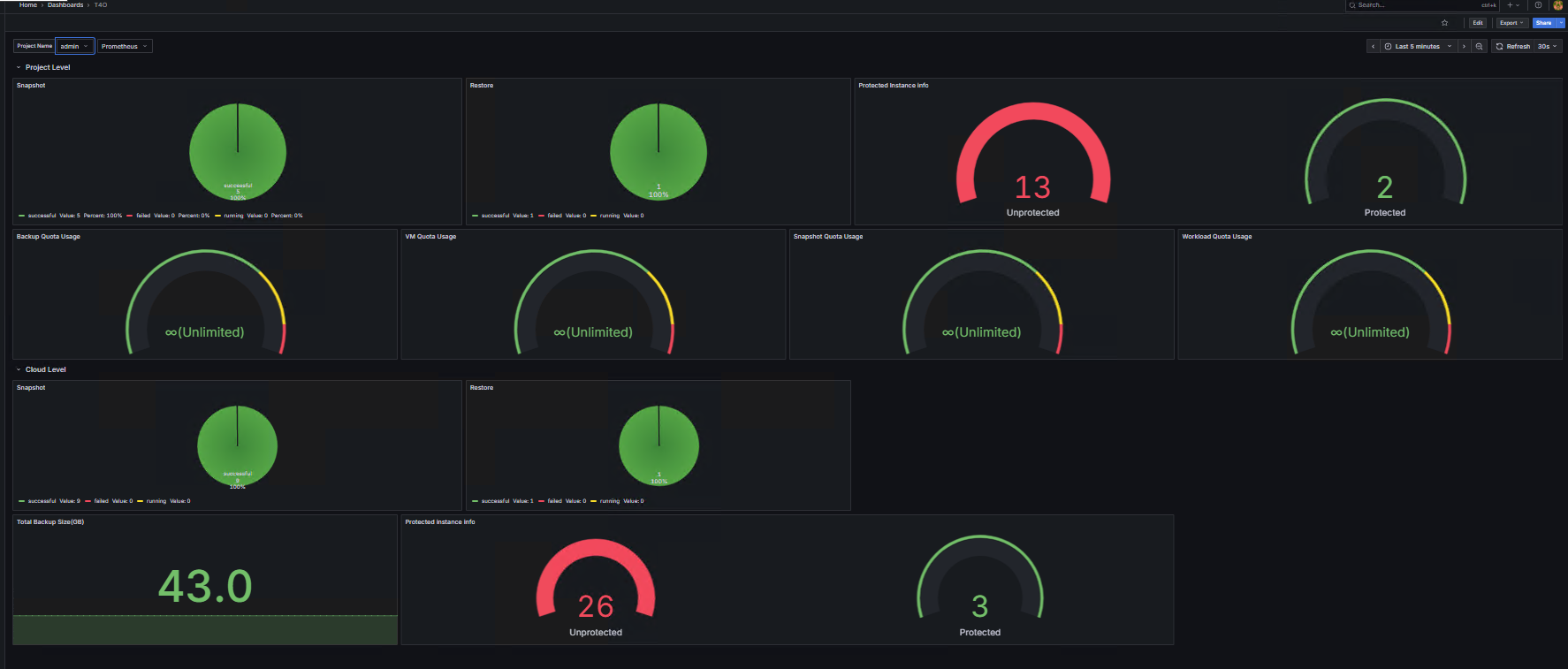
### 2.5] Example
***
## 3] Overview of Default Panels
The Grafana dashboard has two levels:
1. Project level
2. Cloud level
***
### 3.1] Project Level Panel Details
#### 3.1.1] Snapshot Panel

This panel shows the successful, failed, and running backups.
* Green indicates successful backups
* Red indicates failed backups
* Yellow indicates running backups
The panel also shows the percentage ratio of each status.
***
#### 3.1.2] Restore Panel

This panel shows the successful, failed, and running restore operations.
* Green indicates successful restores
* Red indicates failed restores
* Yellow indicates running restores
The panel also shows the percentage ratio of each status.
***
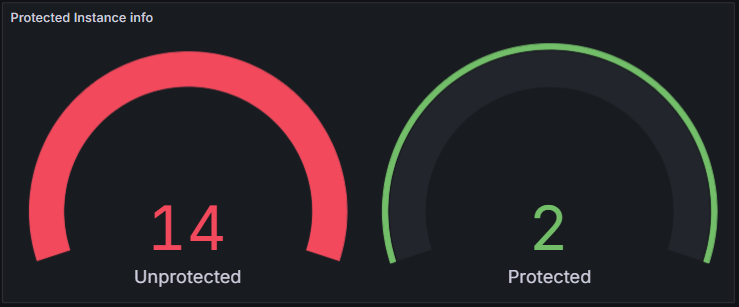
#### 3.1.3] Protected Instance Info Panel
This panel shows the number of protected and unprotected instances.
***
#### 3.1.4] Quota Usage Panel
This panel shows the quota usage details for:
* Backups
* Virtual machines
* Snapshots
* Workloads
***
#### 3.1.5] Workload Panel

This panel shows the number of workloads available in the selected project.
***
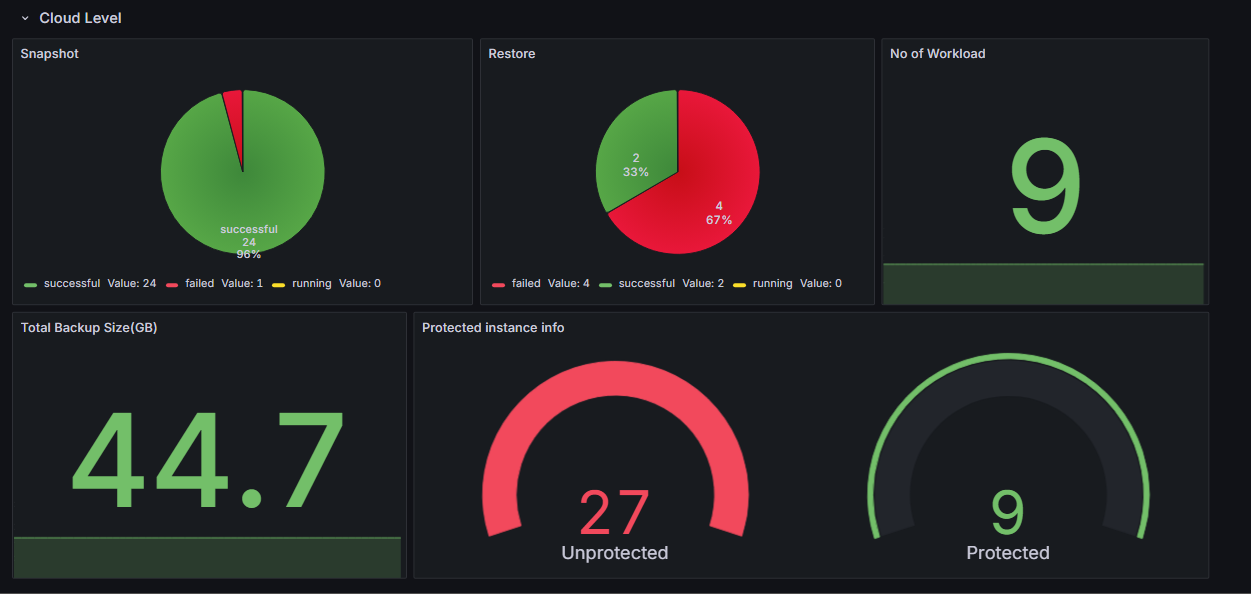
### 3.2] Cloud Level Panel Details
This panel shows the same details as the project level panels, but it displays the information for the entire cloud instead of a specific project.
***