> For the complete documentation index, see [llms.txt](https://docs.trilio.io/kubernetes/llms.txt). Markdown versions of documentation pages are available by appending `.md` to page URLs; this page is available as [Markdown](https://docs.trilio.io/kubernetes/5.2.x/getting-started/using-trilio/getting-started-with-management-console/navigating-intro/backup-and-recovery/backupplans/create-backup-plans.md).

# Create Backup Plans

This page explains how a user can create various types of backup plans.

## Create Backup Plans

1. Log in to the T4K **Management Console**.
2. From the left panel menu, click **Backup & Recovery**.
3. Select one of your clusters from the left panel menu, which displays a dropdown menu for you to select from.\\

   <figure><img src="https://2128071491-files.gitbook.io/~/files/v0/b/gitbook-x-prod.appspot.com/o/spaces%2FVPjqWuFyXH70qgk8Bj5Q%2Fuploads%2Fgit-blob-072b7dcf5cea3d116706fc7e613342461f63df67%2Fcreatebackupplan%20(1).png?alt=media" alt="" width="563"><figcaption><p>Backup Plan Listing</p></figcaption></figure>
4. From this dropdown menu, select **Backup Plans**.
5. From the page displayed, select **Create New**.
6. Choose from the three types of backup plan that may be created:
   * **Application**
   * **Single-namespace**
   * **Multi-namespace**
7. Follow the separate instruction sets for the backup plan types below.

## Backup Plan - Single Namespace

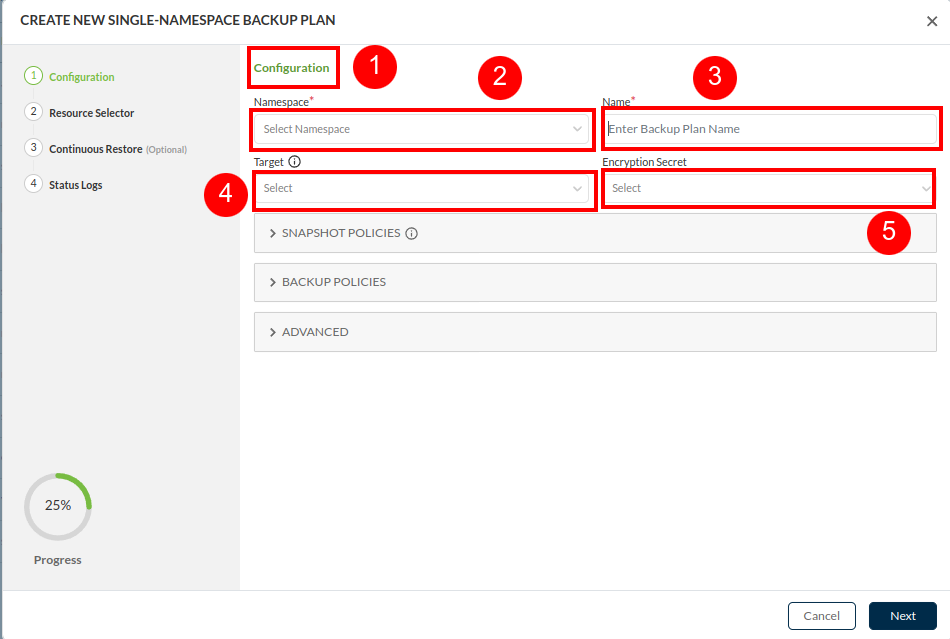
1. The **CREATE NEW BACKUPPLAN Single Namespace** window \*\*\*\* displayed is arranged into two sections. Left section displays the current step. The right section opens to configuration section which is the first step to create a plan.\\

   <figure><img src="https://2128071491-files.gitbook.io/~/files/v0/b/gitbook-x-prod.appspot.com/o/spaces%2FVPjqWuFyXH70qgk8Bj5Q%2Fuploads%2Fgit-blob-baa23b042eb6ae17f3ac77d0560006f3ee6baa0f%2Fcreatebackupplanform.png?alt=media" alt="" width="563"><figcaption><p>Create Backup Plan Configuration</p></figcaption></figure>
2. **Namespace -** Choose from the dropdown menu.
3. **Name -** Type a meaningful name for your plan.
4. **Target** - (Mandatory) Target is a storage location where backup/ snapshot will be stored. Select a target from the dropdown.
5. **Encryption Secret** - Choose an encryption secret from the dropdown menu. Which will encrypt backup/snapshot.
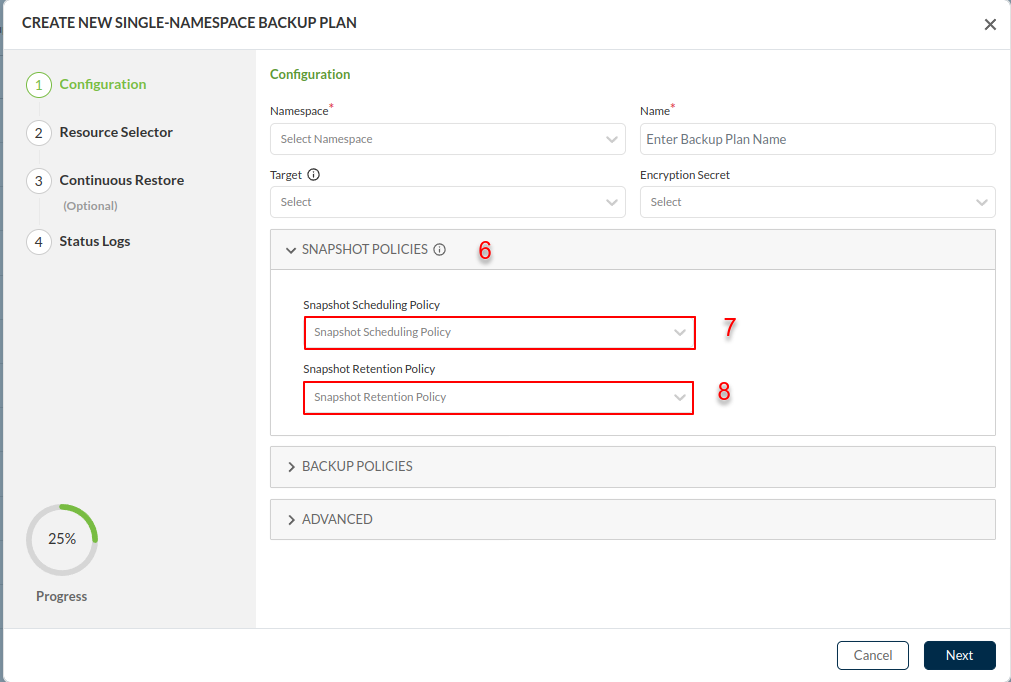
6. **Snapshot Policies -** This opens snapshot policies options which schedules the snapshot based on the policy selected.
7. **Snapshot Scheduling Policy -** This dropdown list all the scheduling policies to select from.
8. **Snapshot Retention Policy -** This dropdown list all the retention policies to select from.

<figure><img src="https://2128071491-files.gitbook.io/~/files/v0/b/gitbook-x-prod.appspot.com/o/spaces%2FVPjqWuFyXH70qgk8Bj5Q%2Fuploads%2Fgit-blob-d0c69ff2eac214207235cf334b5509f5c8661cba%2Fcreatebackupplansnapshotpolicy.png?alt=media" alt="" width="563"><figcaption><p>Create Backup Plan Snapshot Policies</p></figcaption></figure>

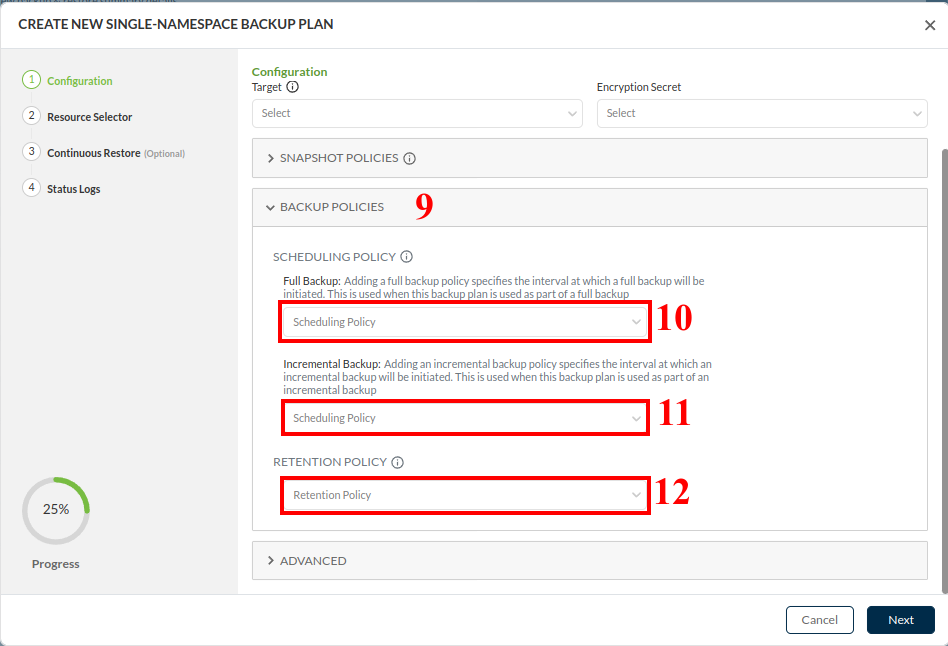
9. **Backup Policies -** This opens backup policies options.

<figure><img src="https://2128071491-files.gitbook.io/~/files/v0/b/gitbook-x-prod.appspot.com/o/spaces%2FVPjqWuFyXH70qgk8Bj5Q%2Fuploads%2Fgit-blob-4085e765c2c100168659ac4d95672ffefa9d1b5e%2Fbackuppolicy.png?alt=media" alt="" width="563"><figcaption><p>Create Backup Plan Backup Policies</p></figcaption></figure>

10. **Scheduling Policy** : **Full Backup** this schedules the backup based on the policy selected, when this plan is part of full backup.
11. **Scheduling Policy : Incremental Backup** this schedules the backup based on the policy selected, when this plan is part of an incremental backup process.
12. **Retention Policy** A retention policy specifies the number of backups to retain for different intervals.Select a retention Policy from the dropdown.

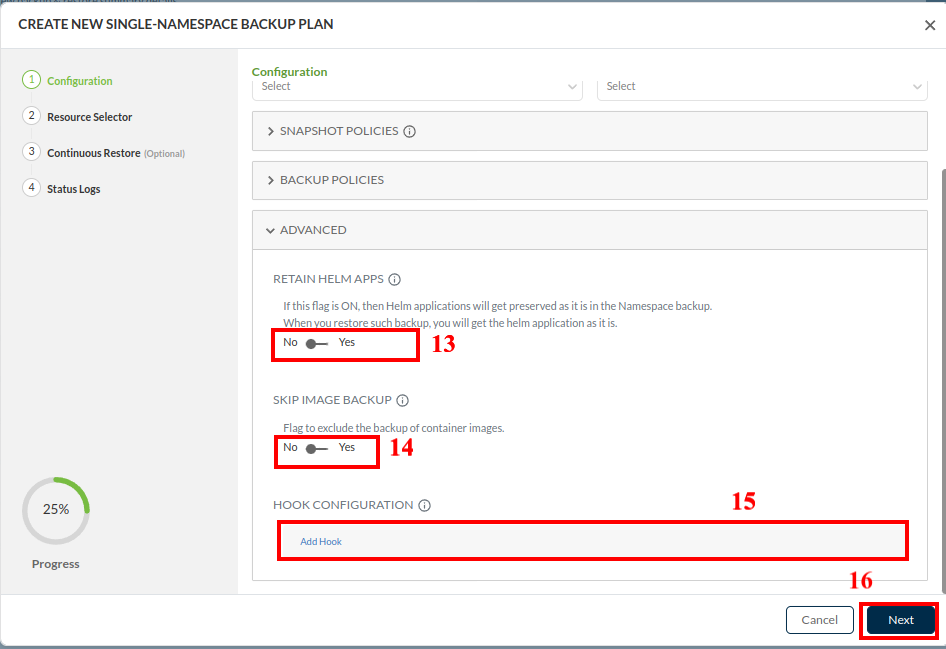
<figure><img src="https://2128071491-files.gitbook.io/~/files/v0/b/gitbook-x-prod.appspot.com/o/spaces%2FVPjqWuFyXH70qgk8Bj5Q%2Fuploads%2Fgit-blob-4a72f775d58932b6d40a81ffb45dd62ee76f8581%2Fbackupplanadvancednew.png?alt=media" alt="" width="563"><figcaption><p>Create Backup Plan Advanced Section</p></figcaption></figure>

13. **Retain Helm Apps** - Enable this toggle to retain Helm apps during restore operations for backup.
14. **Skip Image Backup** - This toggle is to skip image Backup as it excludes the backup of container image.
15. **Add Hooks**
16. Click **Next**.
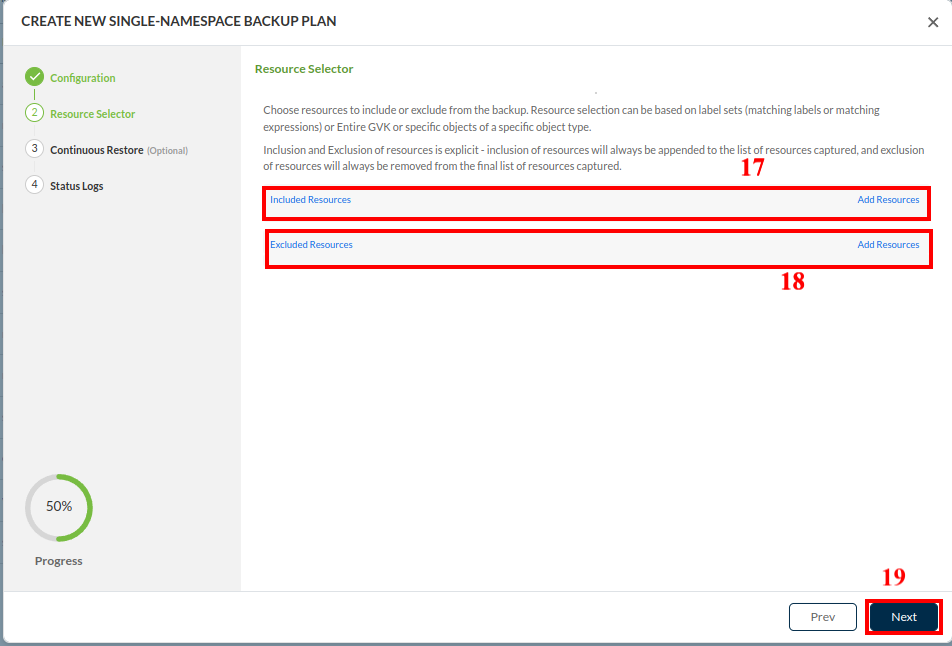
17. The **Step 2: Resource Selector** tab is now displayed. To **include resources**, click **Add Resources**. Included resources will appear under the **Included Resources** list.\\

    <figure><img src="https://2128071491-files.gitbook.io/~/files/v0/b/gitbook-x-prod.appspot.com/o/spaces%2FVPjqWuFyXH70qgk8Bj5Q%2Fuploads%2Fgit-blob-d2645712b6f94ee09111060e614e1ed27c9016f9%2Fbackupplanresourceselector.png?alt=media" alt="" width="563"><figcaption><p>Create Backup Plan Resource Selector</p></figcaption></figure>
18. To **exclude resources**, click **Add Resources**. Excluded resources will appear under the **Excluded Resources** list.
19. Click **Next**.\
    \\

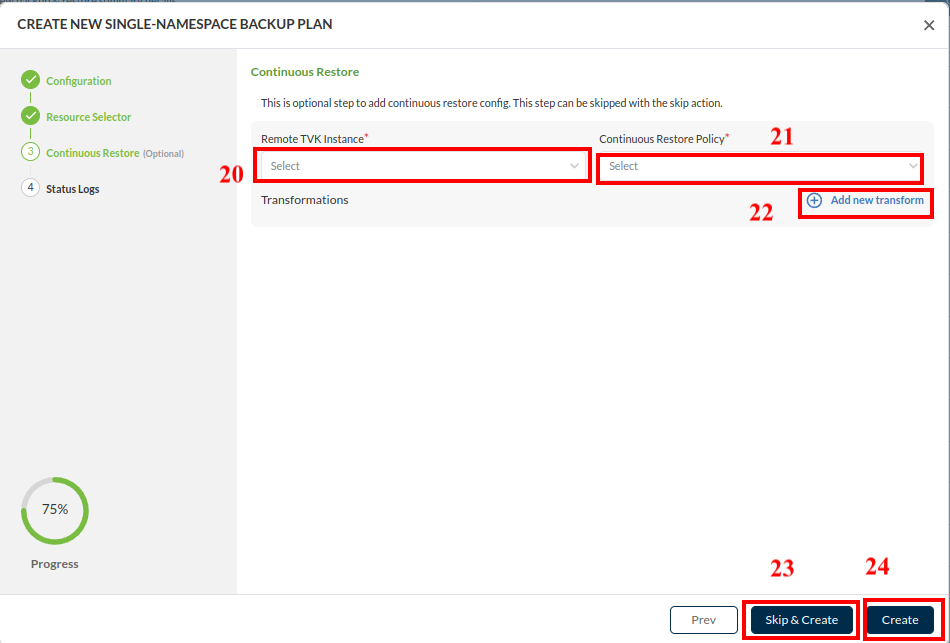
    <figure><img src="https://2128071491-files.gitbook.io/~/files/v0/b/gitbook-x-prod.appspot.com/o/spaces%2FVPjqWuFyXH70qgk8Bj5Q%2Fuploads%2Fgit-blob-6a9c0e03115825dd3c0a1d4644f465e1a8a50099%2Fcreatebackupplansnsfinalstep.png?alt=media" alt="" width="563"><figcaption><p>Create Backup Plan Continuous Restore</p></figcaption></figure>
20. **Step 3: Continuous Restore** (Optional)\
    **Remote TVK Instance** Select a remote TVK instance from the dropdown menu
21. **Continuous Restore Policy** is a dropdown that list all the Continuous Restore Policies, And also provide an option to create a new Continuous Restore Policy by clicking new Continuous Restore Policy link provided at the bottom of the dropdown .
22. **Add new transform** [#create-backup-plan-hook-configuration](#create-backup-plan-hook-configuration "mention")
23. **Skip & Create** if Continuous Restore is not required, click on this to skip the step.
24. Click **Create** to create a backup plan with **Continuous Restore.**
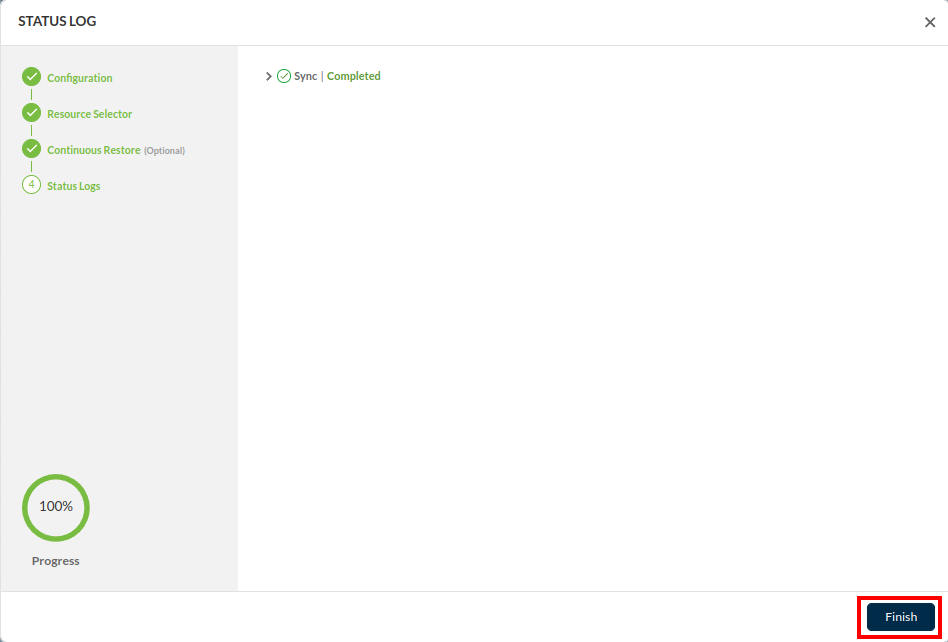
25. **The Step 4: Final Step Status Log**\\

    <figure><img src="https://2128071491-files.gitbook.io/~/files/v0/b/gitbook-x-prod.appspot.com/o/spaces%2FVPjqWuFyXH70qgk8Bj5Q%2Fuploads%2Fgit-blob-61f6f1e068f0fb5e4cf3810a6d7f4adf884004fc%2Fstatuslogpage.png?alt=media" alt="" width="563"><figcaption><p>Status Log</p></figcaption></figure>

## Backup Plan - Application

1. The first step for **Application Backup Plan** is similar to **Single Namespace Backup Plan.**
2. The **Step 2: Component Details** Step is now displayed. There are three optional sub-tabs to choose from:

{% tabs %}
{% tab title="Operator" %}

* Click **Add Operator** Then type your operator name or ID into the **Operator** text field.\
  ![](https://2128071491-files.gitbook.io/~/files/v0/b/gitbook-x-prod.appspot.com/o/spaces%2FVPjqWuFyXH70qgk8Bj5Q%2Fuploads%2Fgit-blob-137a1a0ac8fec8b402ade5d85092b91a73301f38%2Foperator1st.png?alt=media\&token=86e927f8-cbc8-453f-98e9-a72bb2a41ca7)
* After clicking **Add Operator** type your operator name or ID into the **Operator** text field, And click on Apply.\
  ![](https://2128071491-files.gitbook.io/~/files/v0/b/gitbook-x-prod.appspot.com/o/spaces%2FVPjqWuFyXH70qgk8Bj5Q%2Fuploads%2Fgit-blob-7b6117159bccefef50b73af9e46668d66e3a4cf0%2Foperator2nd.png?alt=media\&token=fd0e93bf-e669-4d4f-8097-f5e3023ed842)
* After clicking **Apply** the operator will be added. Here there are multiple actions.\\
  1. Click **Add Another** to include an operator.
  2. Use the **Edit icon** to modify the new operator.
  3. Click the **X** icon to remove the operator.
  4. Select **Add Operator Resources** to include resources.
  5. Click\
     ![](https://2128071491-files.gitbook.io/~/files/v0/b/gitbook-x-prod.appspot.com/o/spaces%2FVPjqWuFyXH70qgk8Bj5Q%2Fuploads%2Fgit-blob-93e1c7aeeb226ba67797660dd44640b8a9f94c51%2Foperatorfinal.png?alt=media\&token=ccd3efc3-9f75-4ad2-85e5-959462f0626c)
     {% endtab %}

{% tab title="Helm Release" %}

* Click **Add Helm Release**.\
  ![](https://2128071491-files.gitbook.io/~/files/v0/b/gitbook-x-prod.appspot.com/o/spaces%2FVPjqWuFyXH70qgk8Bj5Q%2Fuploads%2Fgit-blob-343a0f7bf6f47837191a3bd9723a519e84950eae%2Fhelm.png?alt=media\&token=b10cb553-b7f2-4282-ad90-a6b4bd0fdcb9)
* Then **Select a Helm release** from the dropdown.\
  ![](https://2128071491-files.gitbook.io/~/files/v0/b/gitbook-x-prod.appspot.com/o/spaces%2FVPjqWuFyXH70qgk8Bj5Q%2Fuploads%2Fgit-blob-ab21619818ecd4d3f8812c21a5285b49fcea88c5%2F52.png?alt=media\&token=1a92c157-867b-4ec1-a764-aeac36328c65)
* Click **Apply**
  {% endtab %}

{% tab title="Custom" %}

* Click on **Custom** tab.\
  ![](https://2128071491-files.gitbook.io/~/files/v0/b/gitbook-x-prod.appspot.com/o/spaces%2FVPjqWuFyXH70qgk8Bj5Q%2Fuploads%2Fgit-blob-d3cc1666c2539549787e3ff653371393d8dc6798%2Fcustom.png?alt=media\&token=f75bfe84-a3a9-418f-9d99-8d21089e6996)
* To **include resources**, click **Add Resources**. Included resources will appear under the **Included Resources** list.
* To **exclude resources**, click **Add Resources**. Excluded resources will appear under the **Excluded Resources** list.
  {% endtab %}
  {% endtabs %}

3. The **Step 3: Continuous Restore Step** is now displayed. This is same as Backup Plan - Single Namespace.
4. **The Step 4: Final Step Status Log** is same as Single Namespace status log.\\

## Backup Plan - Multi-namespace

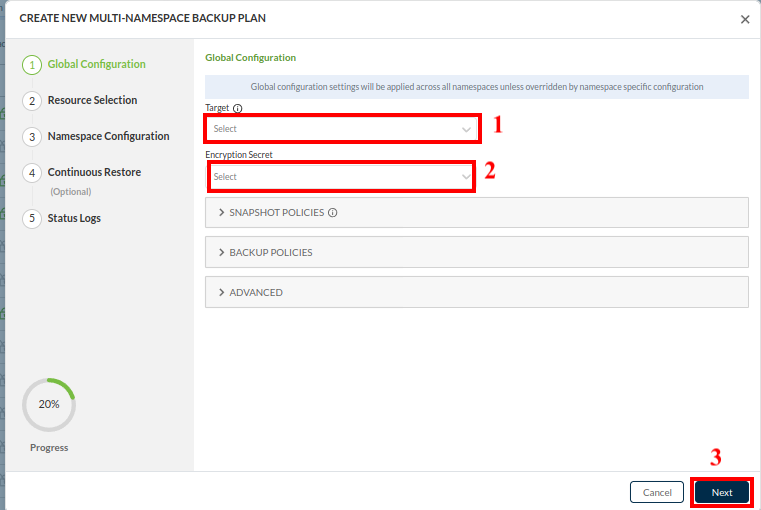
The **CREATE MULTI-NAMESPACE BACKUPPLAN** window \*\*\*\* displayed is arranged into two main sections left one shows the steps/progress and right one shows **Global Configuration**. First to display is **Step 1: Global Configuration.**\
\
Provide parameters like:

<div align="left"><figure><img src="https://2128071491-files.gitbook.io/~/files/v0/b/gitbook-x-prod.appspot.com/o/spaces%2FVPjqWuFyXH70qgk8Bj5Q%2Fuploads%2Fgit-blob-cc260b401070cfbe8745cbff78a178feb98f6d24%2Fmultinsglobalconfig.png?alt=media" alt="" width="563"><figcaption><p>Create Multi-Namespace Backup Plan</p></figcaption></figure></div>

1. **Target** (Mandatory) Target is a storage location where backup/ snapshot will be stored. Select a target from the dropdown.
2. **Encryption Secret** - (Optional) Choose an encryption secret from the dropdown menu. Which will encrypt backup/snapshot.
3. Click **Next**.
4. **Step 2: Resource Selection** resources can be added to the **Included Resources** by clicking **Add Resources.**&#x61;nd/or the **Excluded Resources** list by clicking **Add Resources**. In this example, none are added.\
   ![](https://2128071491-files.gitbook.io/~/files/v0/b/gitbook-x-prod.appspot.com/o/spaces%2FVPjqWuFyXH70qgk8Bj5Q%2Fuploads%2Fgit-blob-404cebee1c8dd9a971483c661d330478a2df8a0d%2Fresource.png?alt=media\&token=dfb3b45f-1547-44ec-a5f7-1ca4850bbde5)
5. Resources can be excluded form the **Excluded Resources** list by clicking **Add Resources**.
6. Click **Next**
7. **Step 3: Namespace Configuration By Namespace** is the first sub-tab of the **Step 3: Namespace Configuration**. On this sub-tab, selected namespace are listed. To add namespace-specific configuration like **hooks**, **exclude resources** and **include resources**, click **Add Configuration** beside the relevant namespace. There is also an option to **Add Namespace** if you wish to do that. This step is optional, so if namespace specific-configurations are not specified, global level configurations will be applied.\
   ![](https://2128071491-files.gitbook.io/~/files/v0/b/gitbook-x-prod.appspot.com/o/spaces%2FVPjqWuFyXH70qgk8Bj5Q%2Fuploads%2Fgit-blob-60b62c191829a08ecf1c41e4dc99f6598345444c%2Fnamespaceconfig.png?alt=media\&token=314fbe8d-f80c-493d-ac40-0af549edce03)
8. **Step 3: Namespace Configuration By Namespace Selector** is the second sub-tab of this step. On this sub-tab, you can select **Add Namespace Selector**. This is \*\*\*\* a combination of matching labels and matching expressions and T4K will select the namespaces that match the selected label sets dynamically. This step is optional, so if namespace specific-configurations are not specified, global level configurations will be applied.\
   ![](https://2128071491-files.gitbook.io/~/files/v0/b/gitbook-x-prod.appspot.com/o/spaces%2FVPjqWuFyXH70qgk8Bj5Q%2Fuploads%2Fgit-blob-1f3d8c63c4ea347b086018c8762db8267552b489%2FresourceSelector.png?alt=media\&token=e453daf7-0b6a-4b8f-8e4c-b67083a2a3d4)
9. Click next.
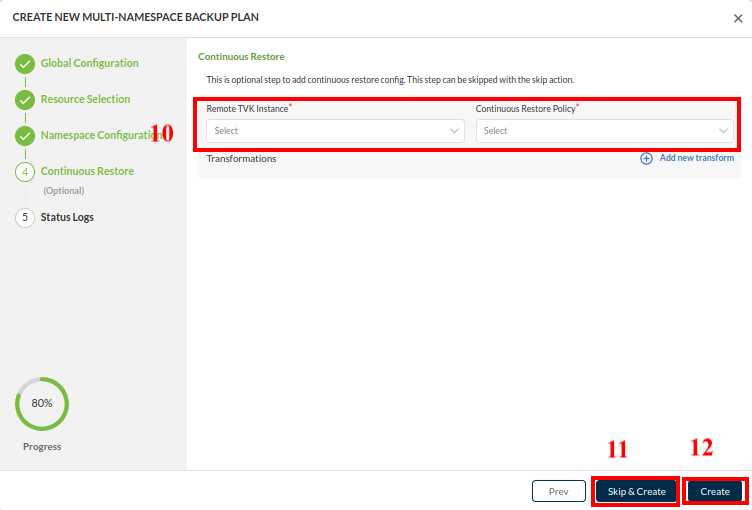
10. **Step 4: Continuous Restore** (optional) this have two dropdowns first **Remote TVK Instance** which is a dropdown to select the TVK instance. and second **Continuous Restore Policy** dropdown that list all the Continuous Restore Policies. And also provides option to create a new continuous Restore Policy by clicking new continuous Restore Policy link provided at the bottom of the dropdown.

<figure><img src="https://2128071491-files.gitbook.io/~/files/v0/b/gitbook-x-prod.appspot.com/o/spaces%2FVPjqWuFyXH70qgk8Bj5Q%2Fuploads%2Fgit-blob-fc5bb00f4194624dd64f6e950e5829fa95e37444%2Fcont.png?alt=media" alt="" width="375"><figcaption><p>Create Backup Plan Continuous Restore</p></figcaption></figure>

11. **Skip & Create** if Continuous Restore is not required click on this to skip the step.
12. Click **Create** to create a backup plan with **Continuous Restore.**
13. You are now prompted to name your backup plan. Type a meaningful name into the free text field.\
    ![](https://2128071491-files.gitbook.io/~/files/v0/b/gitbook-x-prod.appspot.com/o/spaces%2FVPjqWuFyXH70qgk8Bj5Q%2Fuploads%2Fgit-blob-0f253718adb7df29add95922eb28c7605fbf4033%2Fmnsfinal.png?alt=media\&token=34aa6a7b-bc81-4ee4-96fa-d7050ebc083e)
14. Select **Done**.
15. **Step 5: Status Log** is same as Single Namespace status log.

## Create Backup Plan - Hook Configuration

This section explains how to add hooks to a backup plan.\
\
In **Create Backup Plan Step 1: Backup Plan Configuration**, click on the **Advanced** section and then click **Add Hook**.\
![](https://2128071491-files.gitbook.io/~/files/v0/b/gitbook-x-prod.appspot.com/o/spaces%2FVPjqWuFyXH70qgk8Bj5Q%2Fuploads%2Fgit-blob-56e89f235cfff1d5c1bcba482c78eab4cdc50a61%2Fbackupplan-add-hook.png?alt=media\&token=2d48b4bb-2298-4c64-a450-b53dd4f646ad)\
1\. **Select a Hook** from the dropdown menu or [Create Hook](/kubernetes/5.2.x/getting-started/using-trilio/getting-started-with-management-console/navigating-intro/backup-and-recovery/hooks/create-hook.md) using the link provided at the very bottom of the dropdown. Because the **Pre** section in a hook is not mandatory, users are allowed to create hooks without it. However, for Backup and Snapshot operations, a **Pre** section is mandatory. As a result, hooks that do not include a **Pre** section cannot be selected. Additionally, when creating hooks through the Backup Plan flow, a **Pre** section is required.

![](https://2128071491-files.gitbook.io/~/files/v0/b/gitbook-x-prod.appspot.com/o/spaces%2FVPjqWuFyXH70qgk8Bj5Q%2Fuploads%2Fgit-blob-4911b3bf4bf87759d54e181c0d4002396343416d%2Faddhookfinal.png?alt=media\&token=a939194c-f741-45cf-b991-8a2f1dc574f9)

\
2\. TVK provides the capability for selecting the containers within the pods selected by the pod selector.

* Click on **Add label Set** to add a Label Set.
* There will be two sub-tabs: **Match Labels** and **Match Expressions**.

  \
  \
  ![](https://2128071491-files.gitbook.io/~/files/v0/b/gitbook-x-prod.appspot.com/o/spaces%2FVPjqWuFyXH70qgk8Bj5Q%2Fuploads%2Fgit-blob-7a6d19e34831676db32f533e0f5f335712a2ae05%2Faddlabel.png?alt=media\&token=be1942b4-9e8d-49ad-b0b7-97ef4b2941e9)\\
* **Match Labels:**
  * Select Labels from the dropdown and click **Apply.**
  * The added labels will be listed under the **Added Labels** section.
  * Click **Add** to add label set to the hook.
* Match Expressions:
  * Match expressions include key-operator-value pairs where the value is optional based on the selected operator.\
    ![](https://2128071491-files.gitbook.io/~/files/v0/b/gitbook-x-prod.appspot.com/o/spaces%2FVPjqWuFyXH70qgk8Bj5Q%2Fuploads%2Fgit-blob-91a0e749a4d6c4f8d6610688d32ee29c006439e7%2Faddlabelset.png?alt=media\&token=5fb8d867-28df-43ab-8608-745b95c1ddfd)
  * Click on **Match Expression** sub tab.
  * Select a Key from the **Keys** dropdown.
  * Select an operator from **In**, **Not In**, **Exists**, or **Does Not Exist**.
  * Select a value (only if **In** or **Not In** is selected in the previous step).
  * Click **Apply** to add this to **ADDED LABELS** list.
  * Click **ADD**

3\. **Pod Selection Using Regex:**

* The pod selection can be done by matching a regex Or provide a **Regex.**

4. **Container Name Matching:**

* The expression provided in this field is used to match container names within the pods selected by the pod selector.