> For the complete documentation index, see [llms.txt](https://docs.trilio.io/kubernetes/llms.txt). Markdown versions of documentation pages are available by appending `.md` to page URLs; this page is available as [Markdown](https://docs.trilio.io/kubernetes/5.0.x/getting-started/using-trilio/getting-started-with-management-console/navigating-intro/backup-and-recovery/policies.md).

# Policies

### Scheduling Policies

* Log in to the T4K **Management Console**.
* From the left panel menu, click **Backup & Recovery**.
* Select one of your clusters from the left panel menu, which displays a dropdown menu for you to select from.
* From this dropdown menu, select **Policies**. Schedule policies is visible by default selected.
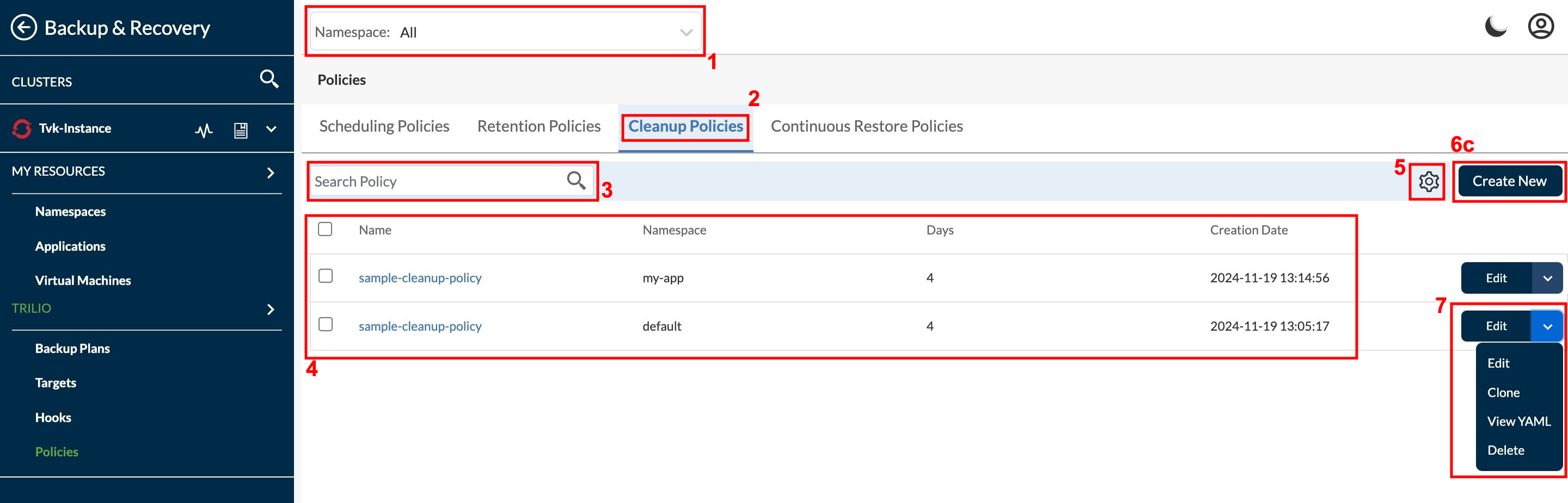
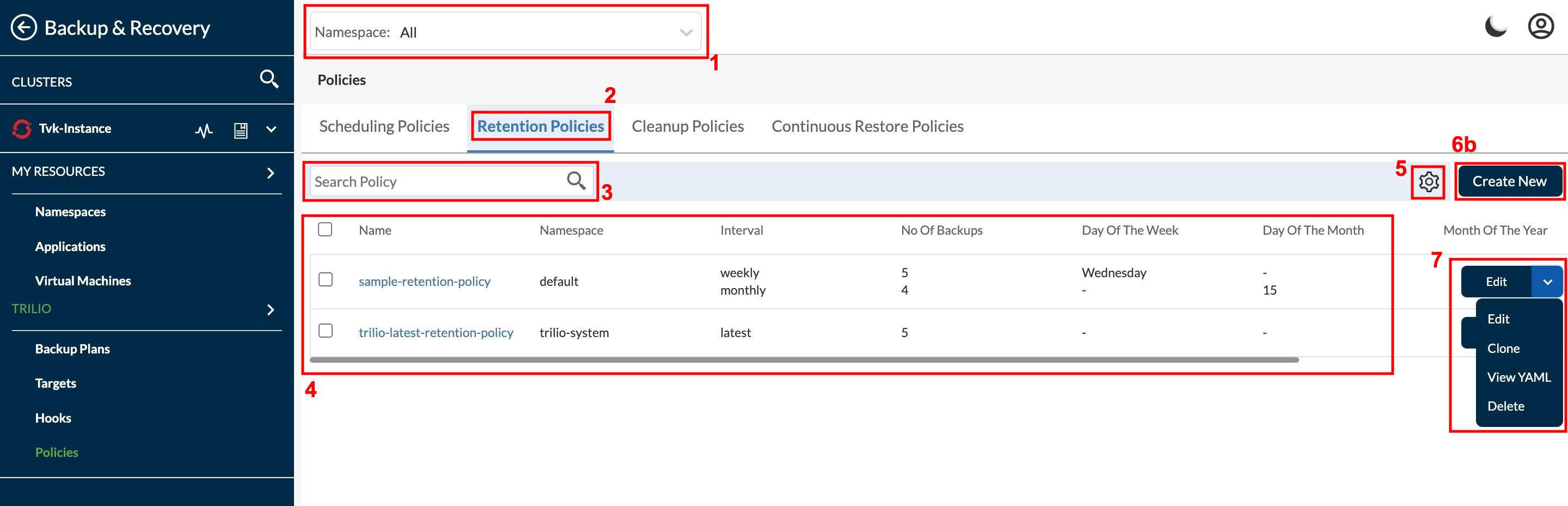
* From the page displayed, create new policies or take actions associated with existing policy. Refer to the following image and descriptions in the associated table.

![Schedule Policy section](/files/VHNjfDaK4H5DUBSOdTkP)

<figure><img src="/files/jEwbVrX8kStqlTm4Q82C" alt=""><figcaption><p>Retention Policy section</p></figcaption></figure>

<figure><img src="/files/TxYv62TrSxhebfnLf5rX" alt=""><figcaption><p>Cleanup Policy section</p></figcaption></figure>

<figure><img src="/files/Aaak3HJJXbDfKRQ7oi4j" alt=""><figcaption><p>Continuous Restore Policy section</p></figcaption></figure>

<table><thead><tr><th width="131.33333333333331">Field No.</th><th width="205">Field/Button Name</th><th>Description</th></tr></thead><tbody><tr><td>1</td><td>Namespace selector</td><td>This dropdown lists all namespaces in the selected cluster alphabetically. Click one or all to display the selection.</td></tr><tr><td>2</td><td>Policy name</td><td>This shows the selected policy to see Overview and to perform the actions.</td></tr><tr><td>3</td><td>Search Policies</td><td>A search field to find the policies that user wants to display. The list filters as you type.</td></tr><tr><td>4</td><td>Column listing table</td><td>This displays the list of policies with details in the columns.<br>Checkboxes may be selected/deselected to facilitate the execution of bulk actions. Use the table header row checkbox to select/deselect all listed policies.</td></tr><tr><td>5</td><td>Setting icon</td><td>This is to adjust the columns visibility in listing.</td></tr><tr><td>6</td><td>Create New</td><td>This used to Create new Policy. On click on this a model pop-up open to create a Policy.<br>  6a - this open the schedule policy creation model pop-up.<br>  6b - this open the retention policy creation model pop-up.<br>  6c - this open the cleanup policy creation model pop-up.<br>  6d - this open the continuous restore policy creation model pop-up.</td></tr><tr><td>7</td><td>Actions</td><td><p>This button displays a dropdown menu of further actions that can be taken in relation to a single cluster. Menu options are:<br>- Edit</p><p>- Clone<br>- View YAML<br>- Delete</p></td></tr></tbody></table>